How-to
Report an Incident
Suspicious Emails
Outlook for Android
To report junk email using Outlook for Android, follow the three (3) steps below:
Step #1
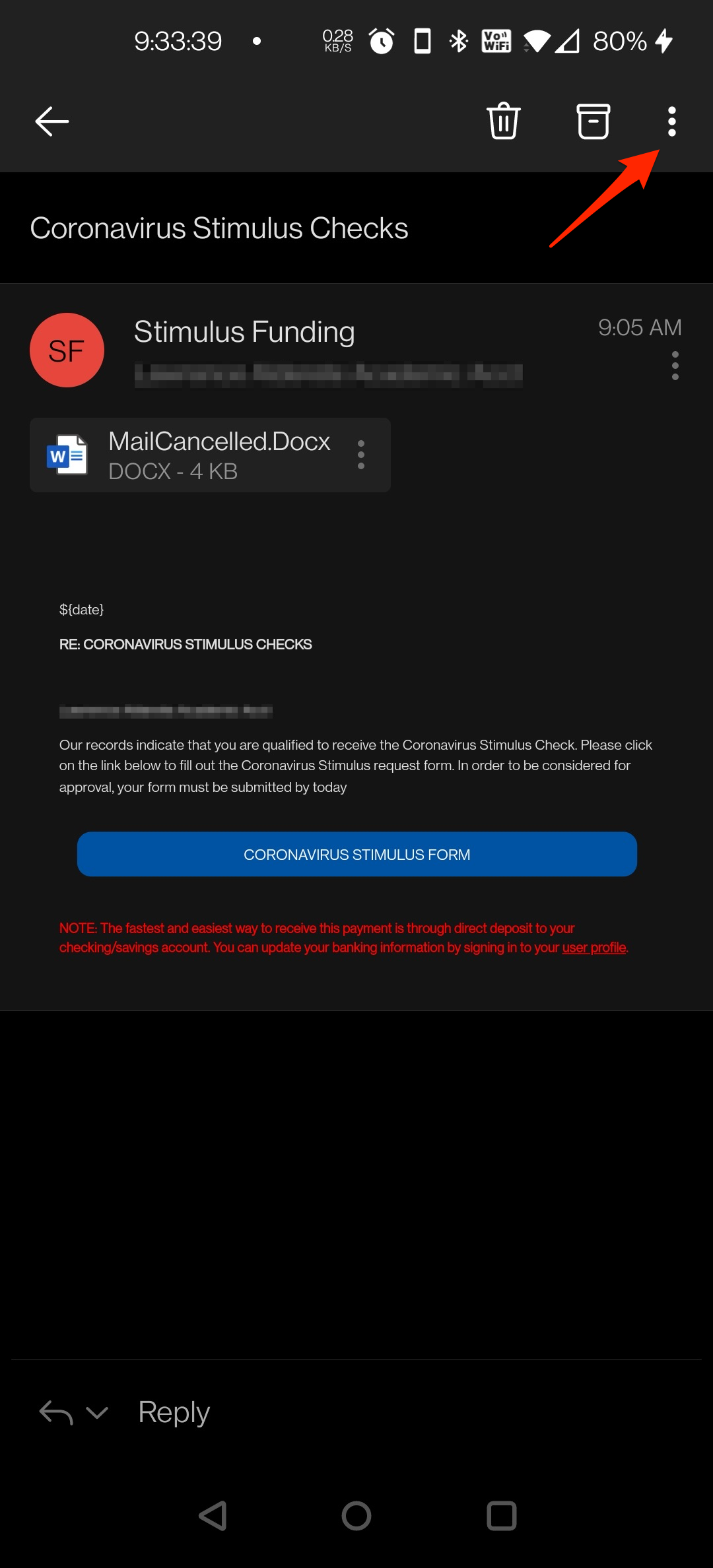
Select the vertical ellipsis (three vertical dots)
Step #2
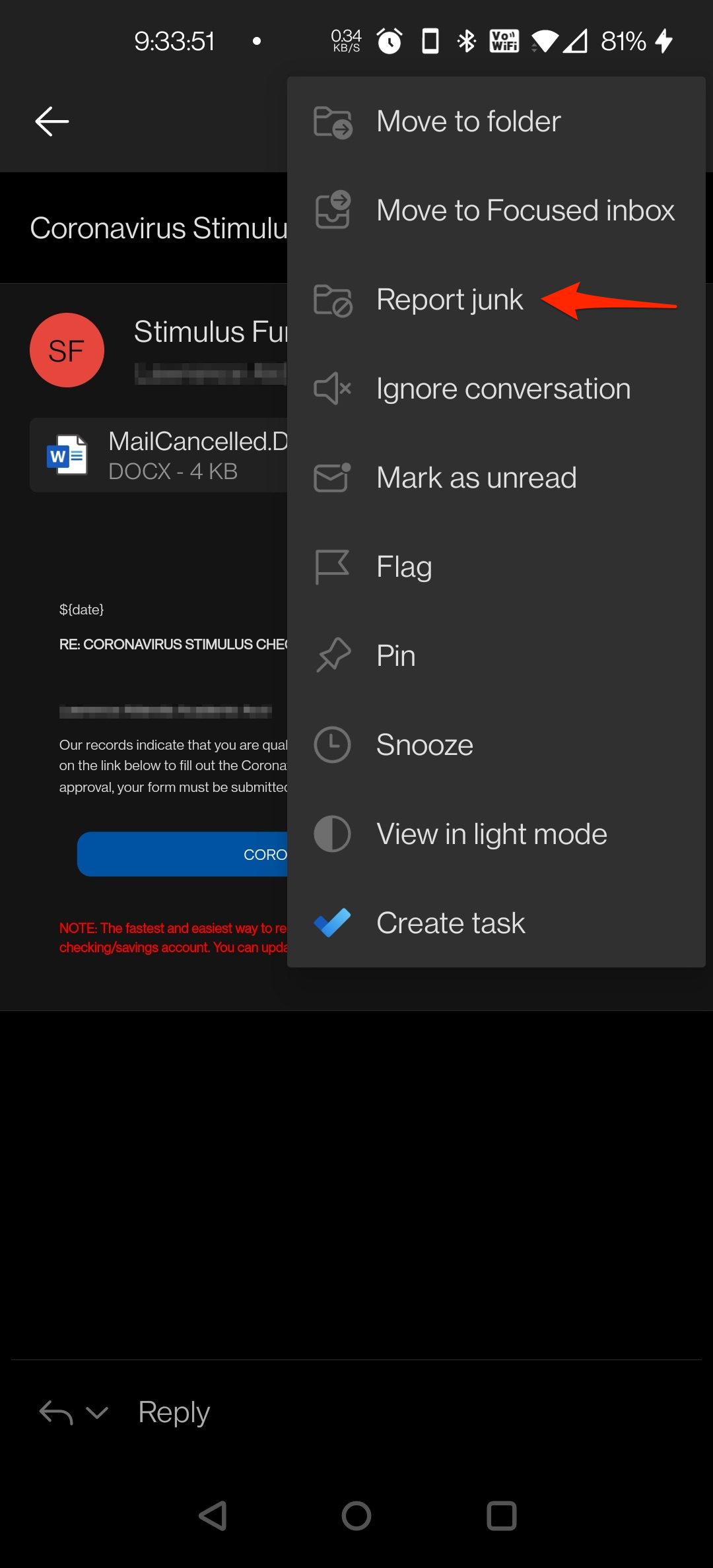
In the context menu, select the 'Report junk' option
Step #3
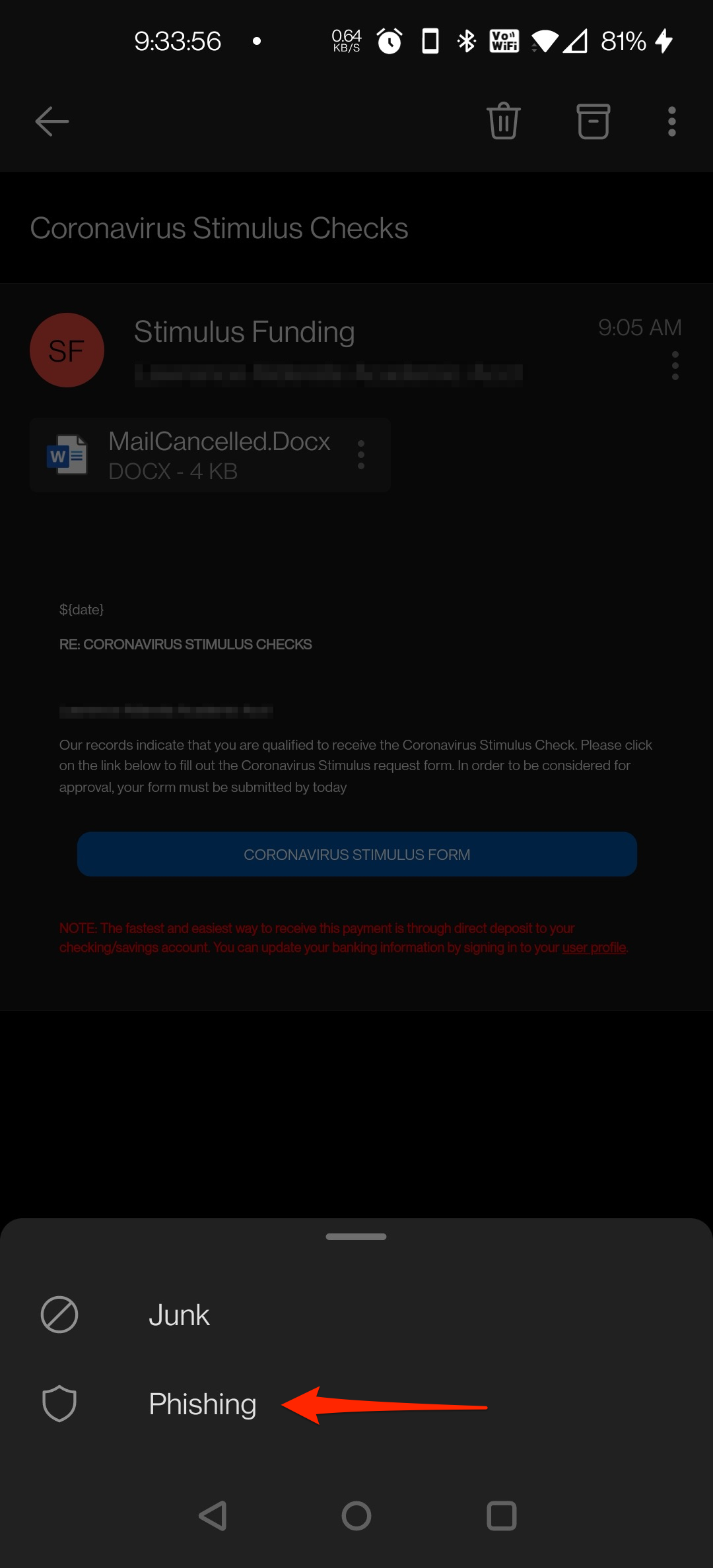
In the second context menu, select the 'Junk' option
You're done!
Outlook for iOS
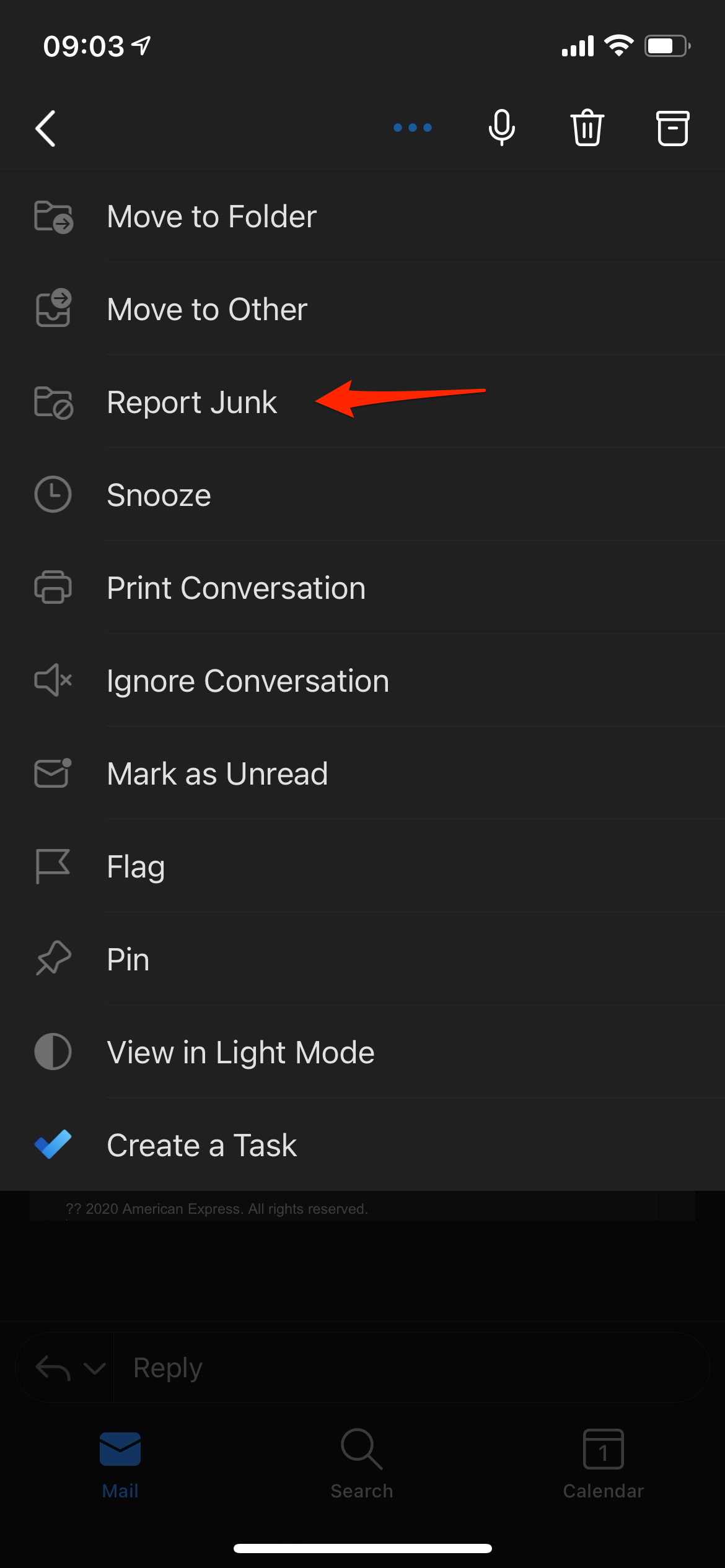
To report junk email using Outlook for iOS, follow the four (4) steps below:
Step #1
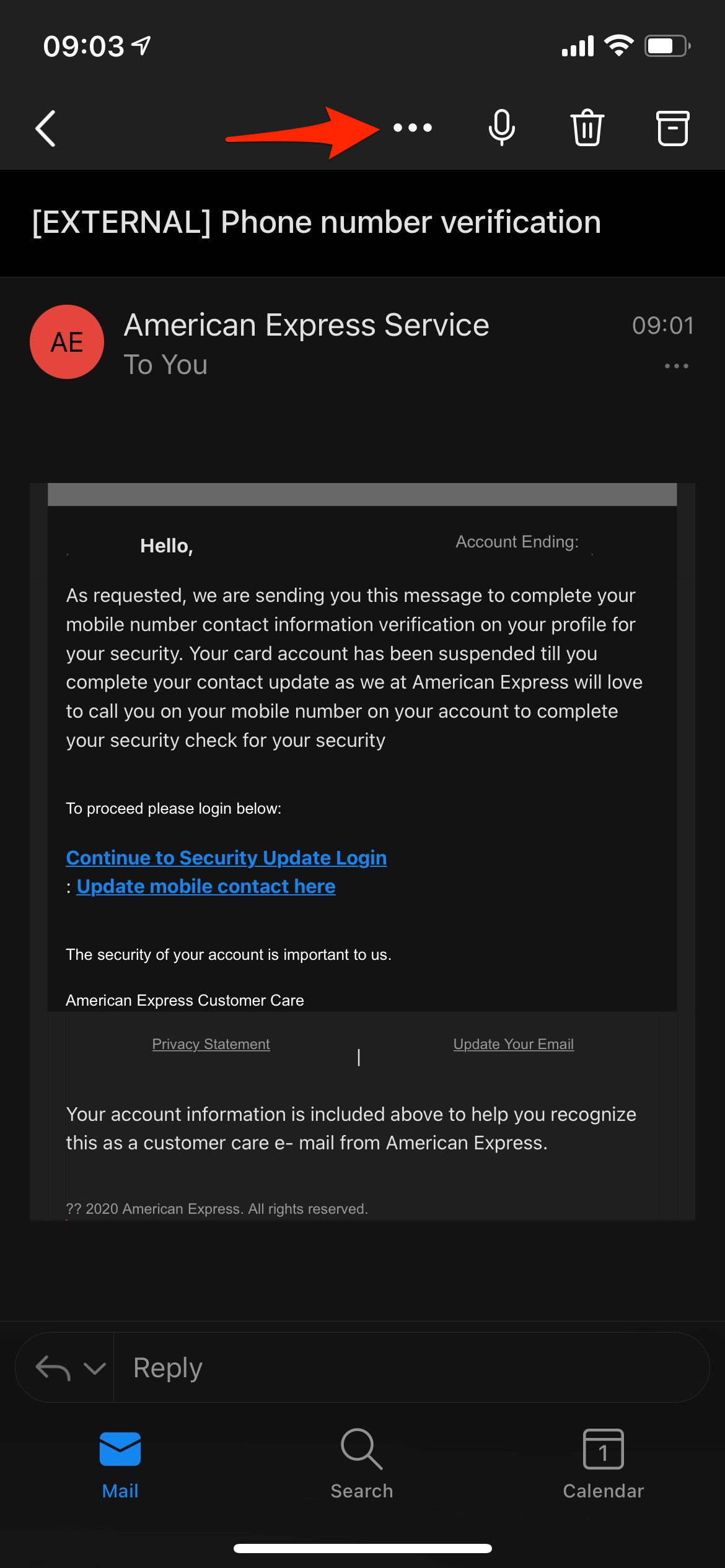
Select the ellipsis (three horizontal dots)
Step #2
In the context menu, select the 'Report Junk' option
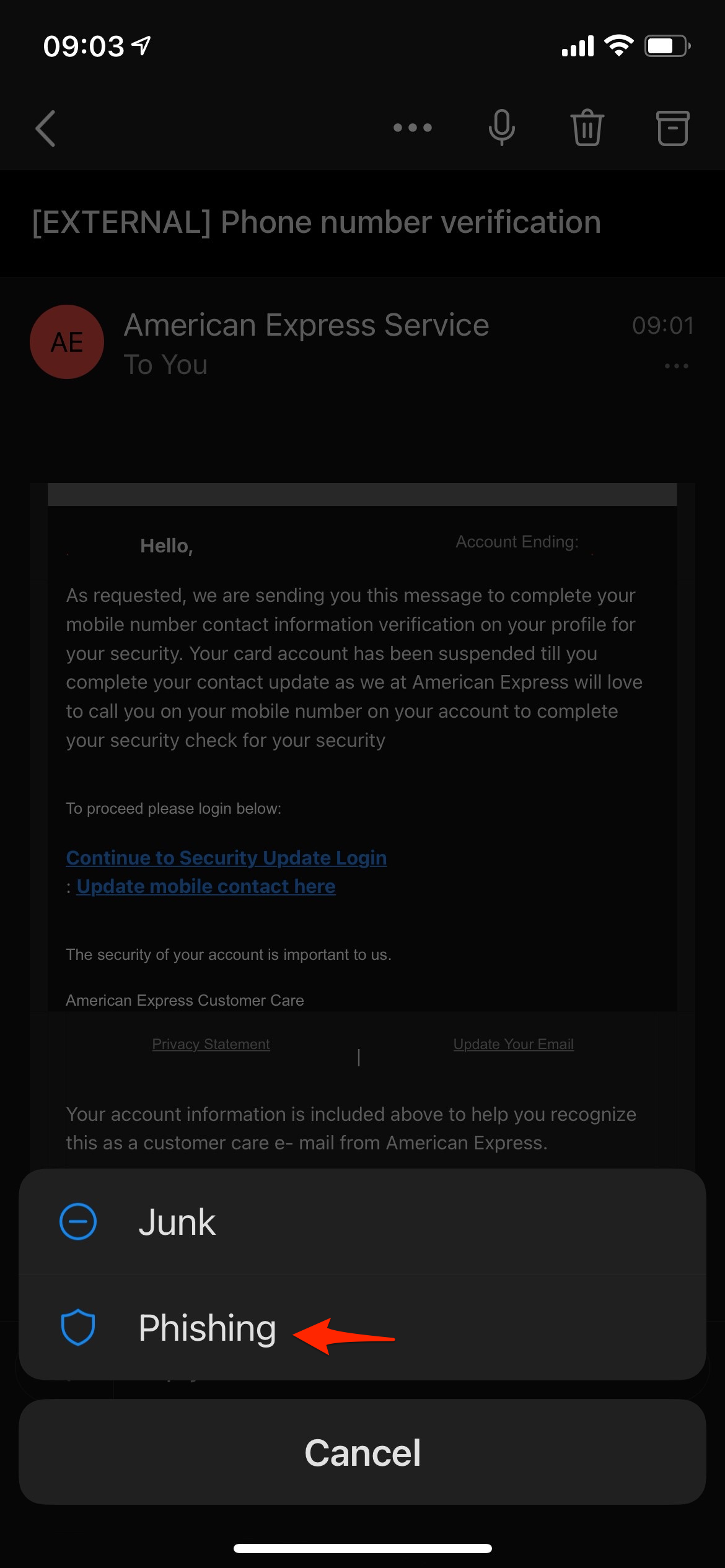
Step #3
In the second context menu, select the 'Phishing' option
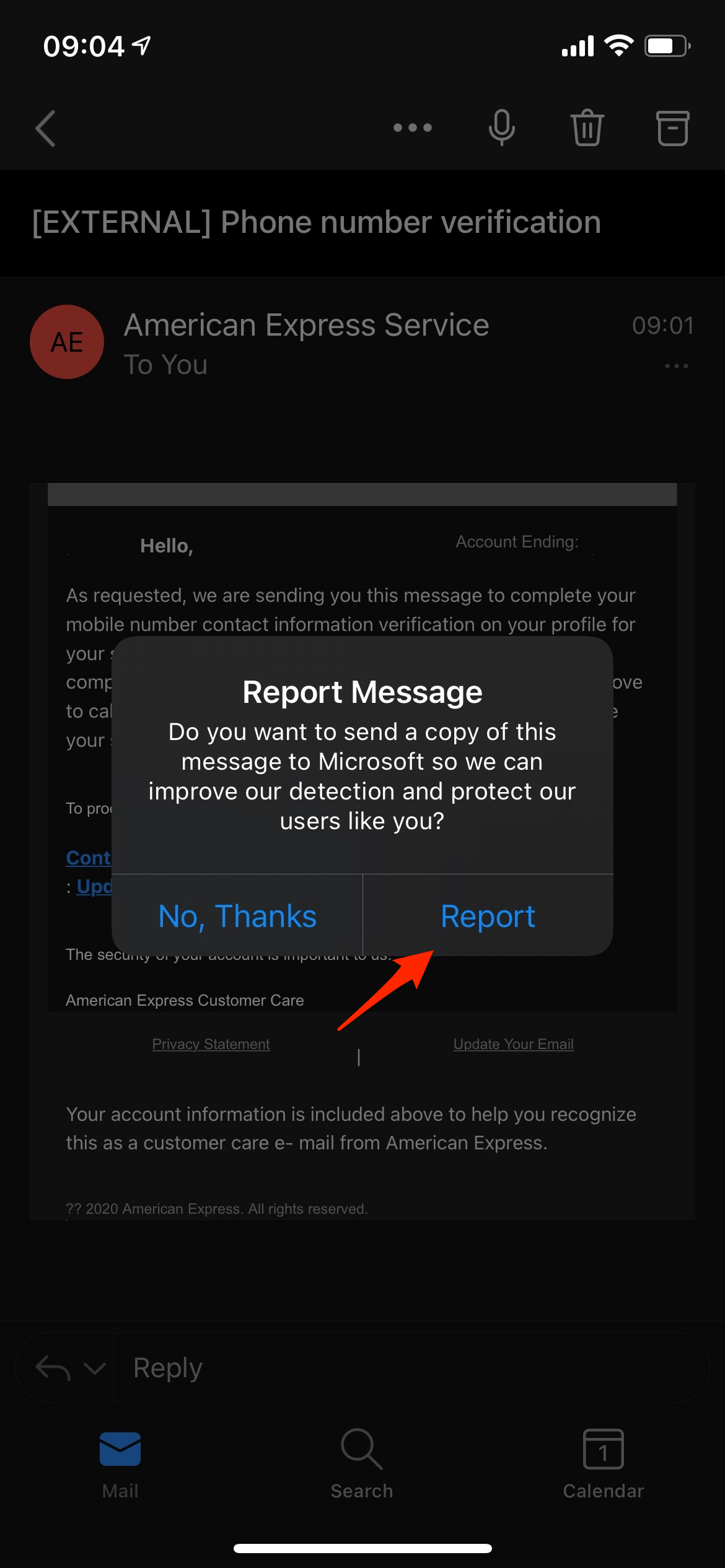
Step #4
In the modal dialog, select 'Report' option
You're done!
Outlook for Mac
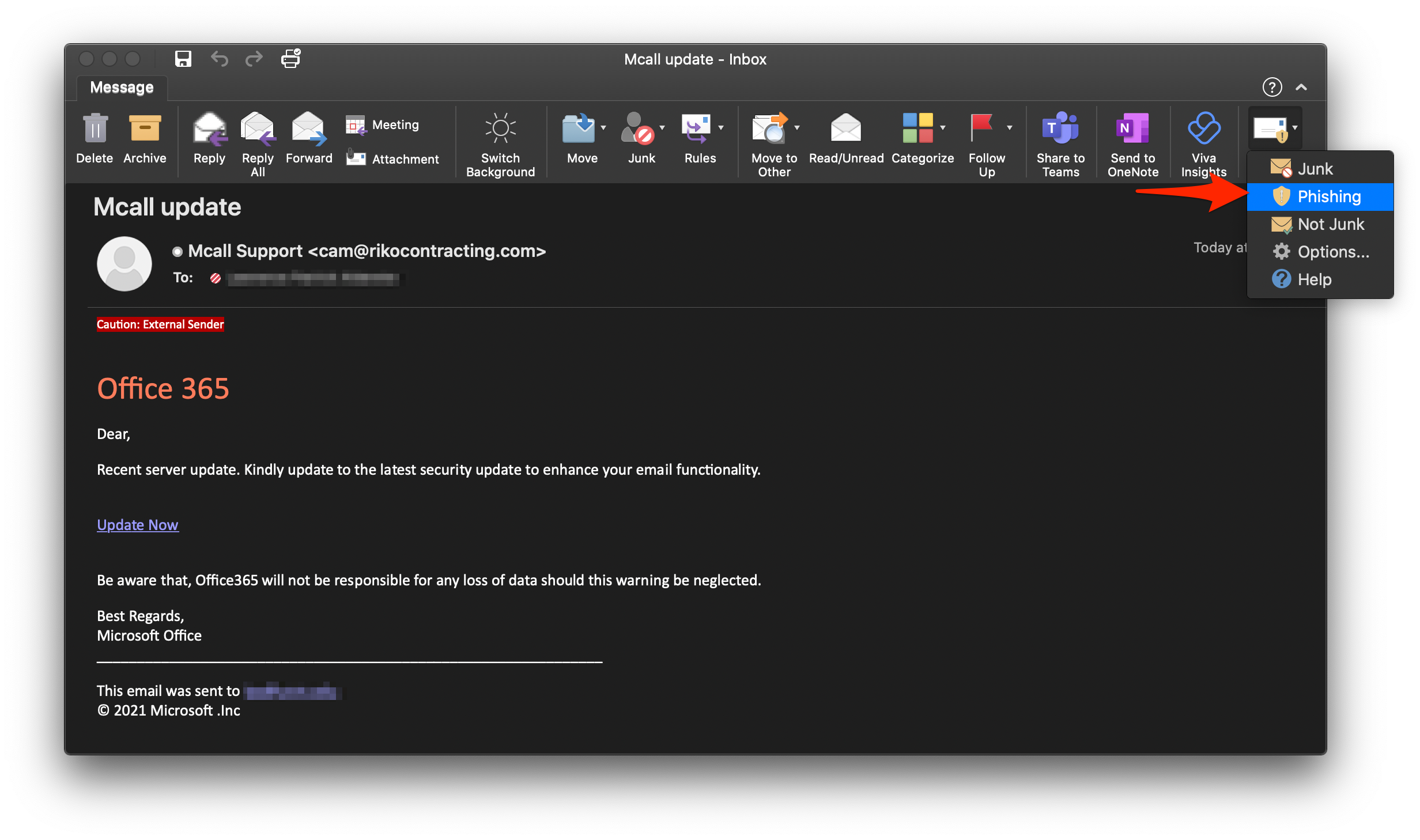
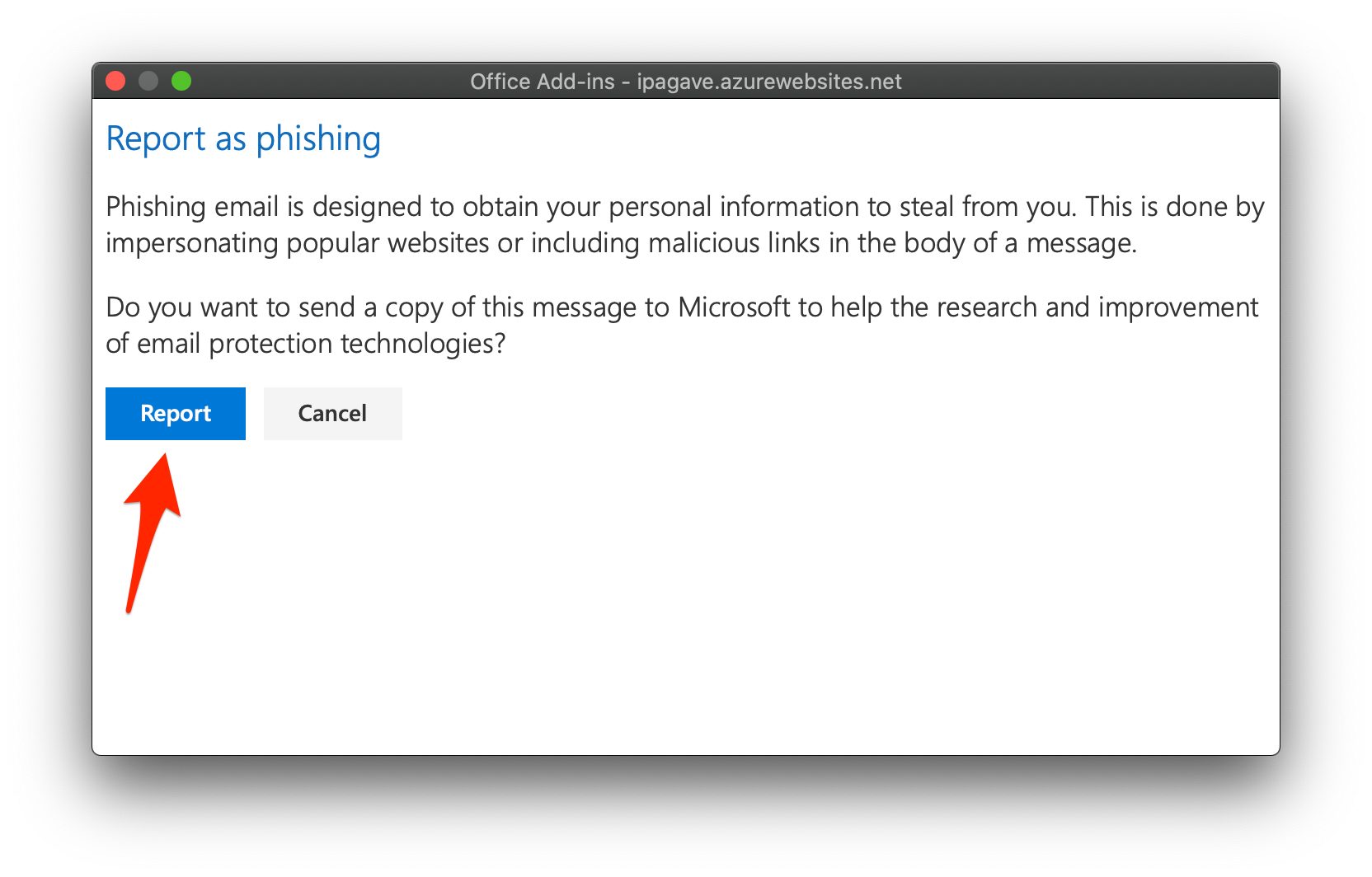
To report phishing email using Outlook for Mac, follow the three (3) steps below:
Steps #1 and #2
Select the 'Report Message' icon, then select the 'Phishing' option
Step #3
In the 'Report as phishing' modal dialog, select the 'Report' option
You're done!
Outlook for Windows
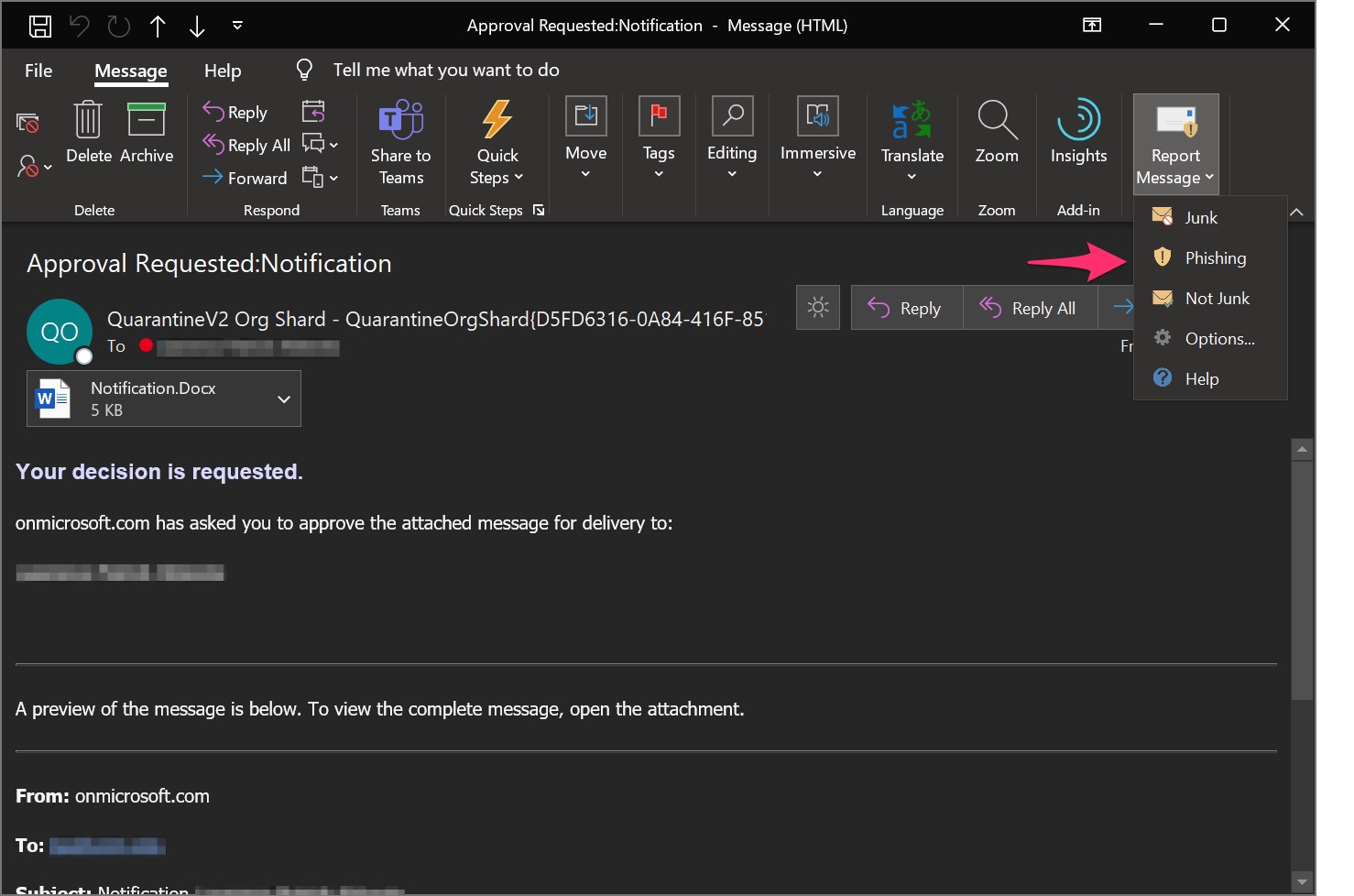
To report phishing email using Outlook for Windows, follow the three (3) steps below:
Steps #1 and #2
Select the 'Report Message' icon, then select the 'Phishing' option
Step #3
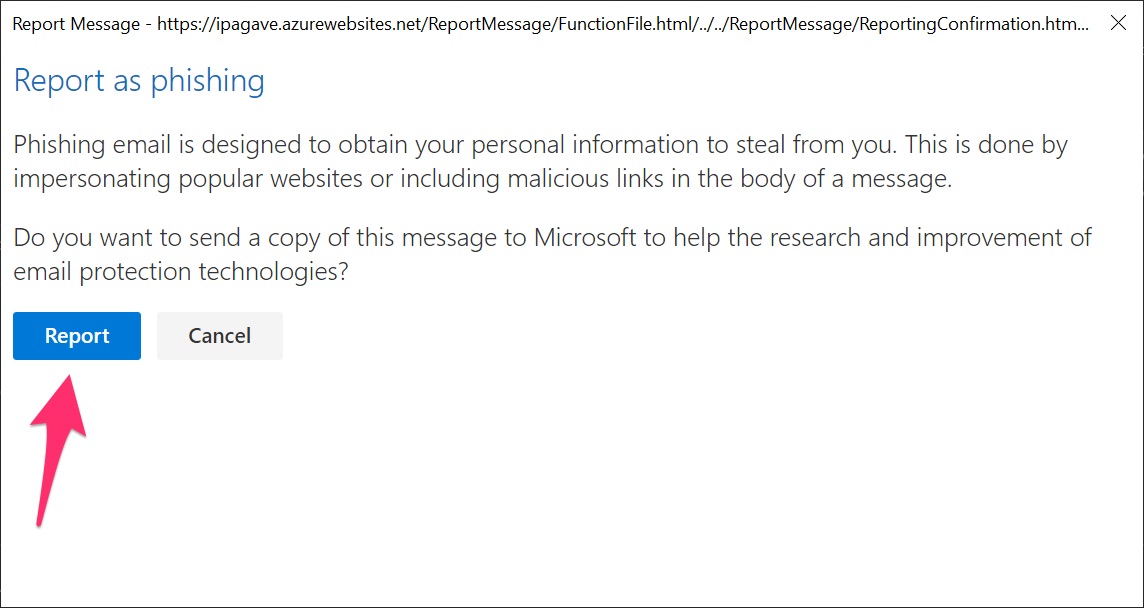
In the 'Report as phishing' modal dialog, select the 'Report' option
You're done!
Outlook Web Access
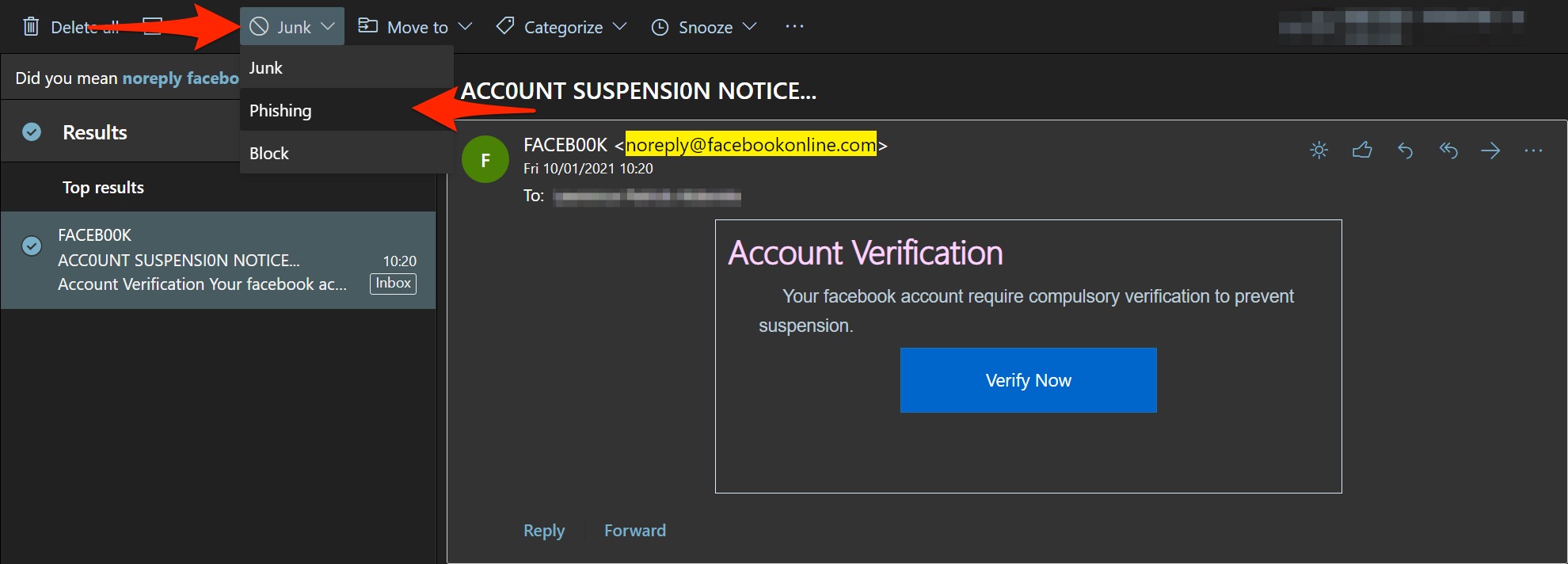
To report phishing email using Outlook Web Access (OWA), follow the two (2) steps below:
Method #1
Steps #1 and #2
Select the 'Junk' icon, then select the 'Phishing' option
You're done!
Outlook for Android
To report phishing email using Outlook for Android, follow the three (3) steps below:
Step #1
Select the vertical ellipsis (three vertical dots)
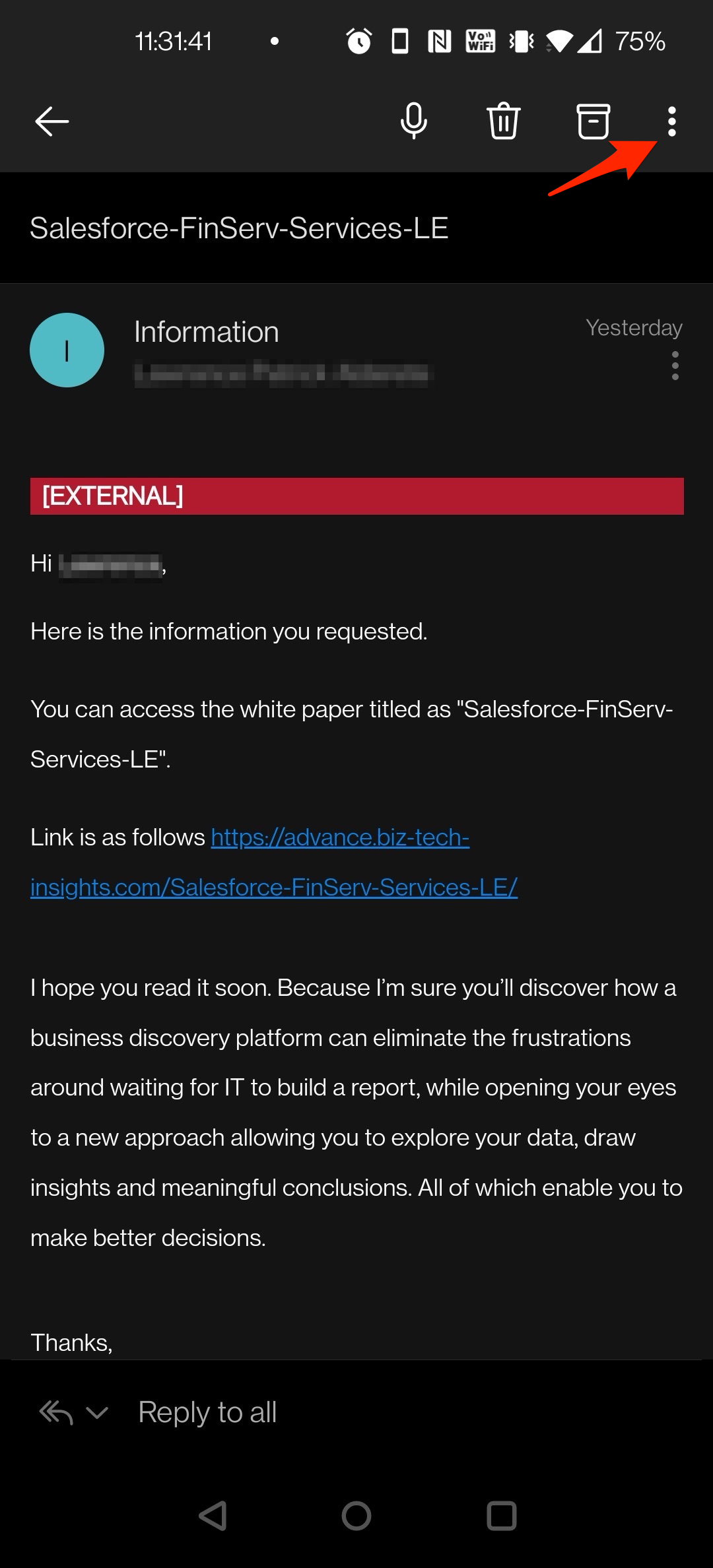
Step #2
In the context menu, select the 'Report junk' option
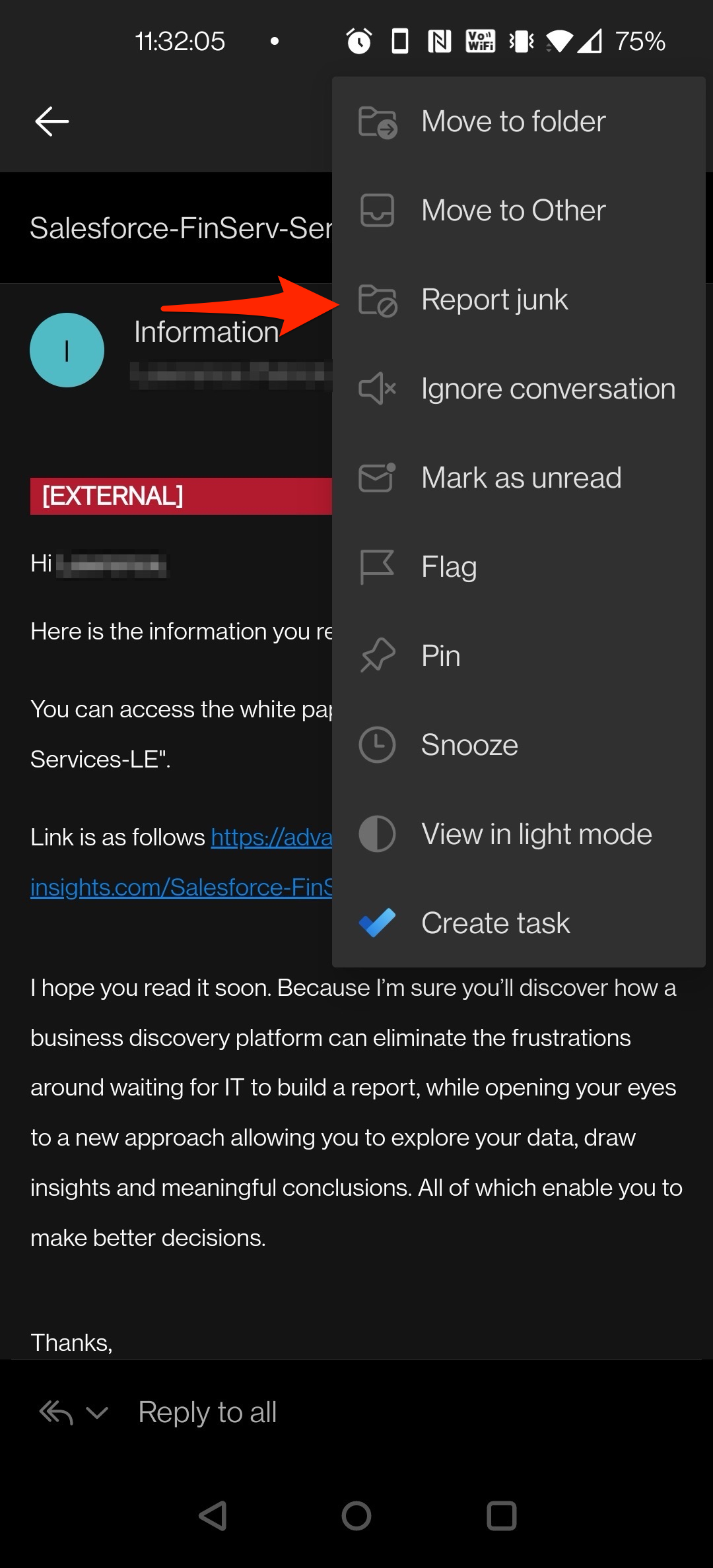
Step #3
In the second context menu, select the 'Phishing' option
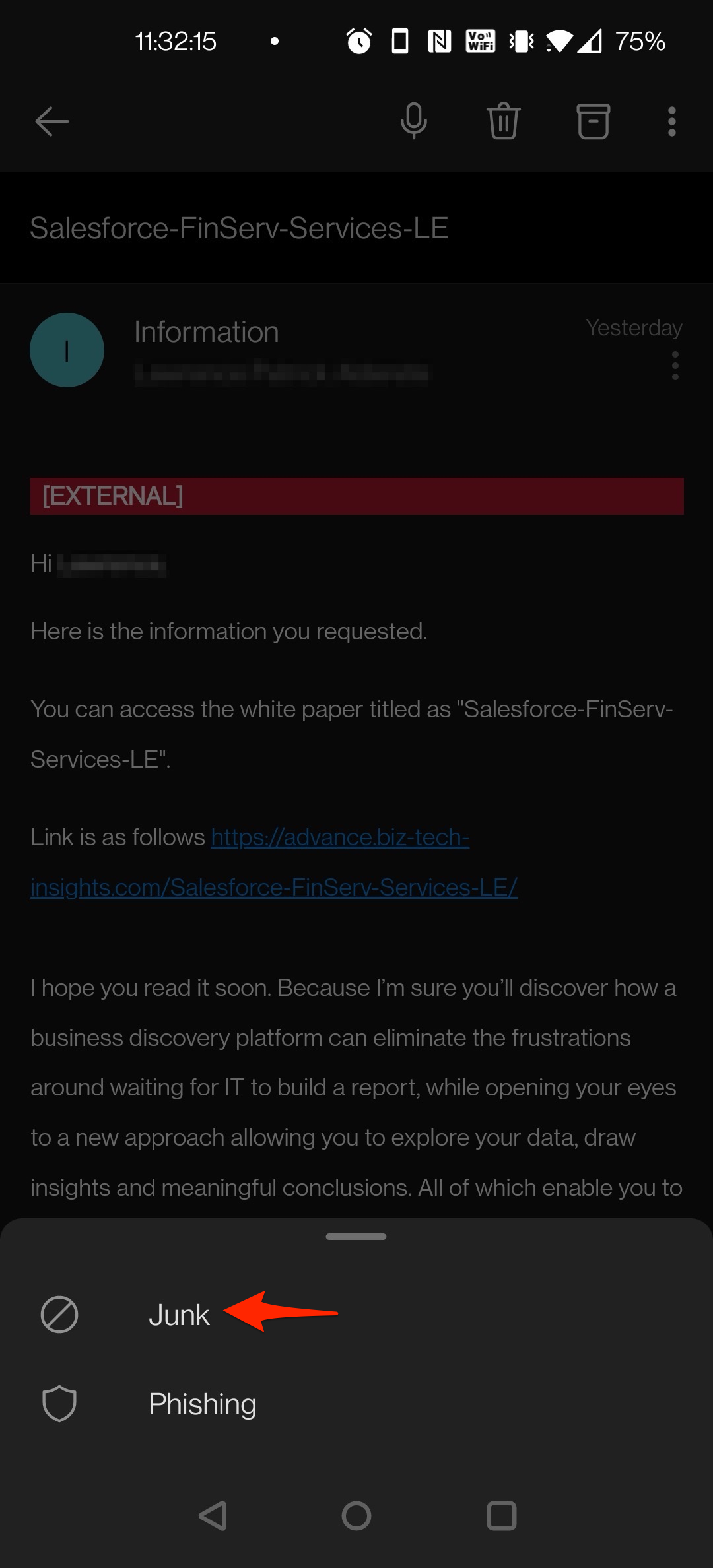
You're done!
Outlook for iOS
To report phishing email using Outlook for iOS, follow the four (4) steps below:
Step #1
Select the ellipsis (three horizontal dots)
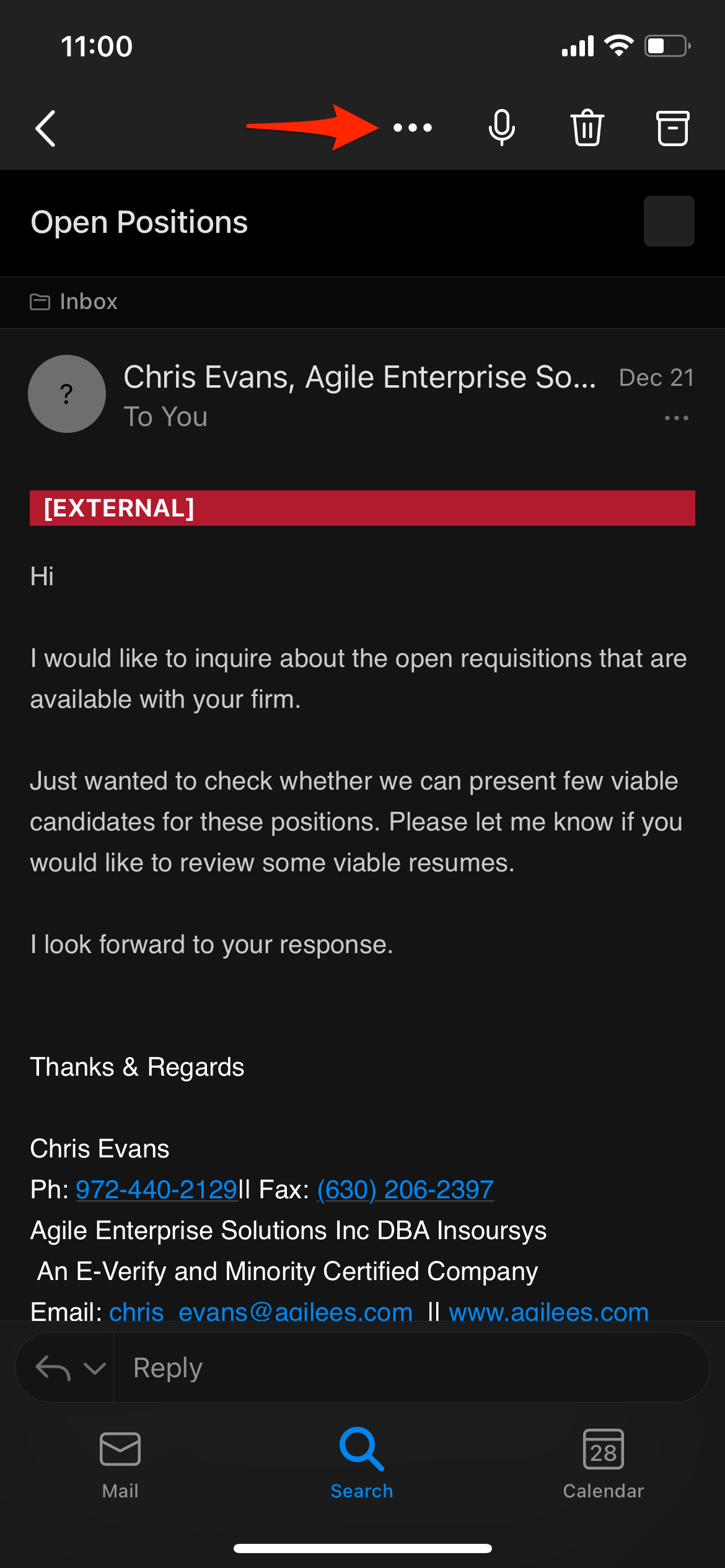
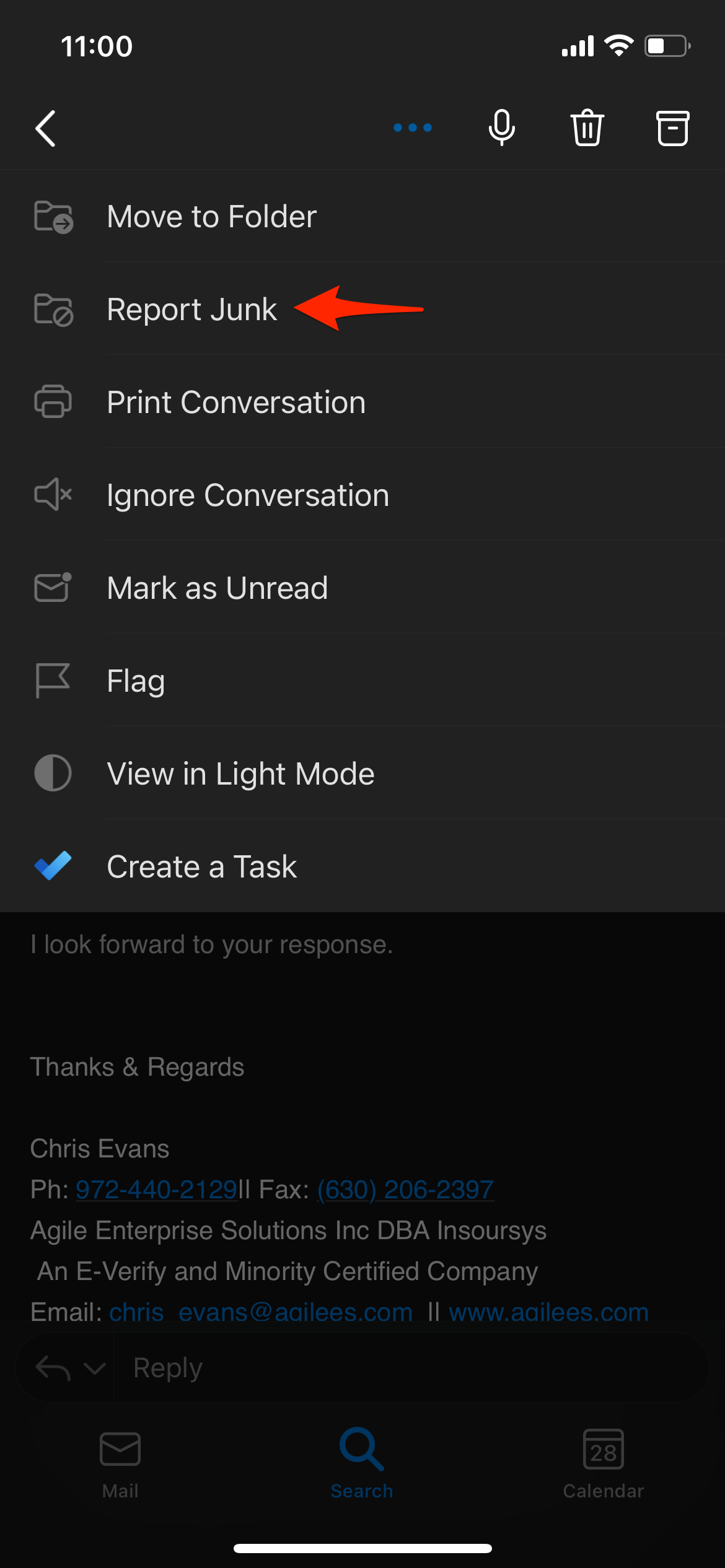
Step #2
In the context menu, select the 'Report Junk' option
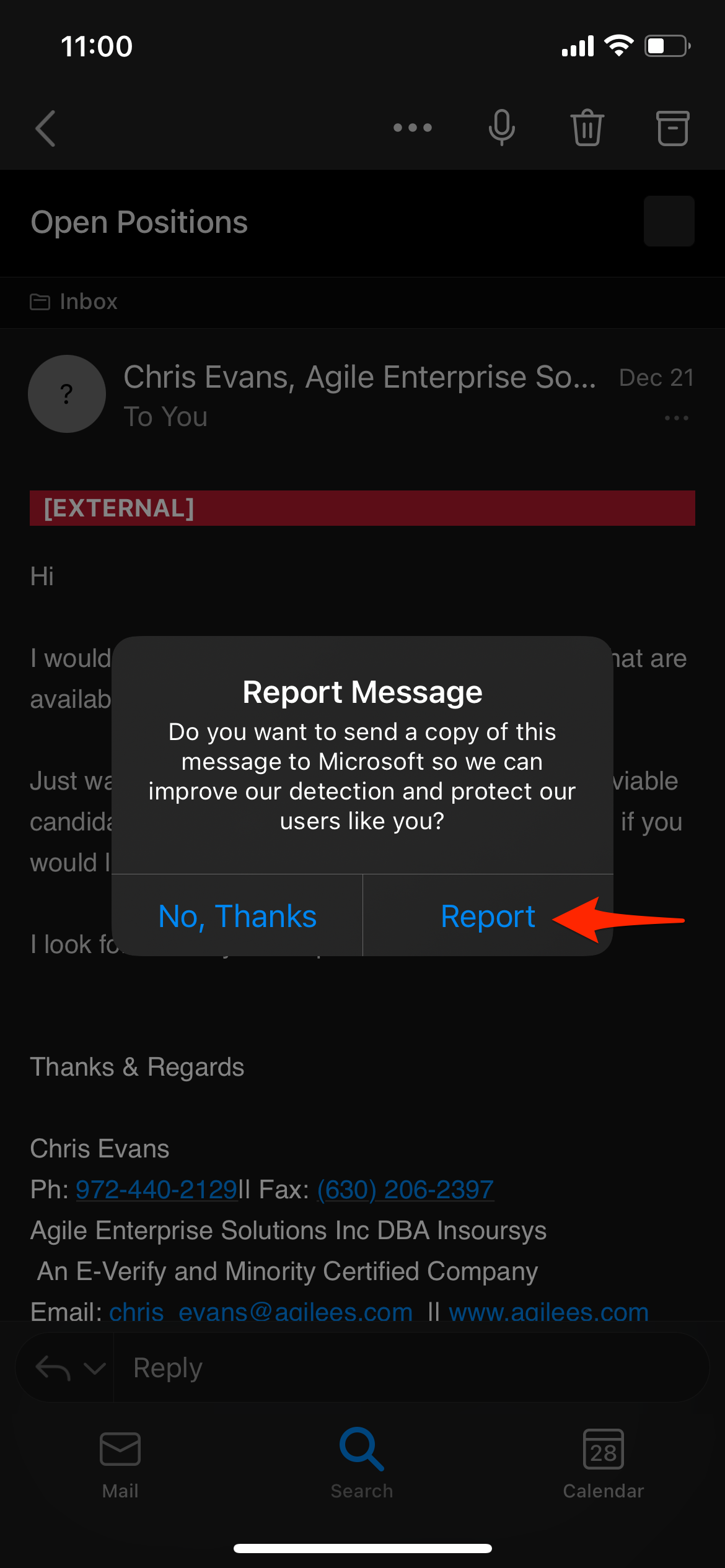
Step #3
In the second context menu, select the 'Phishing' option
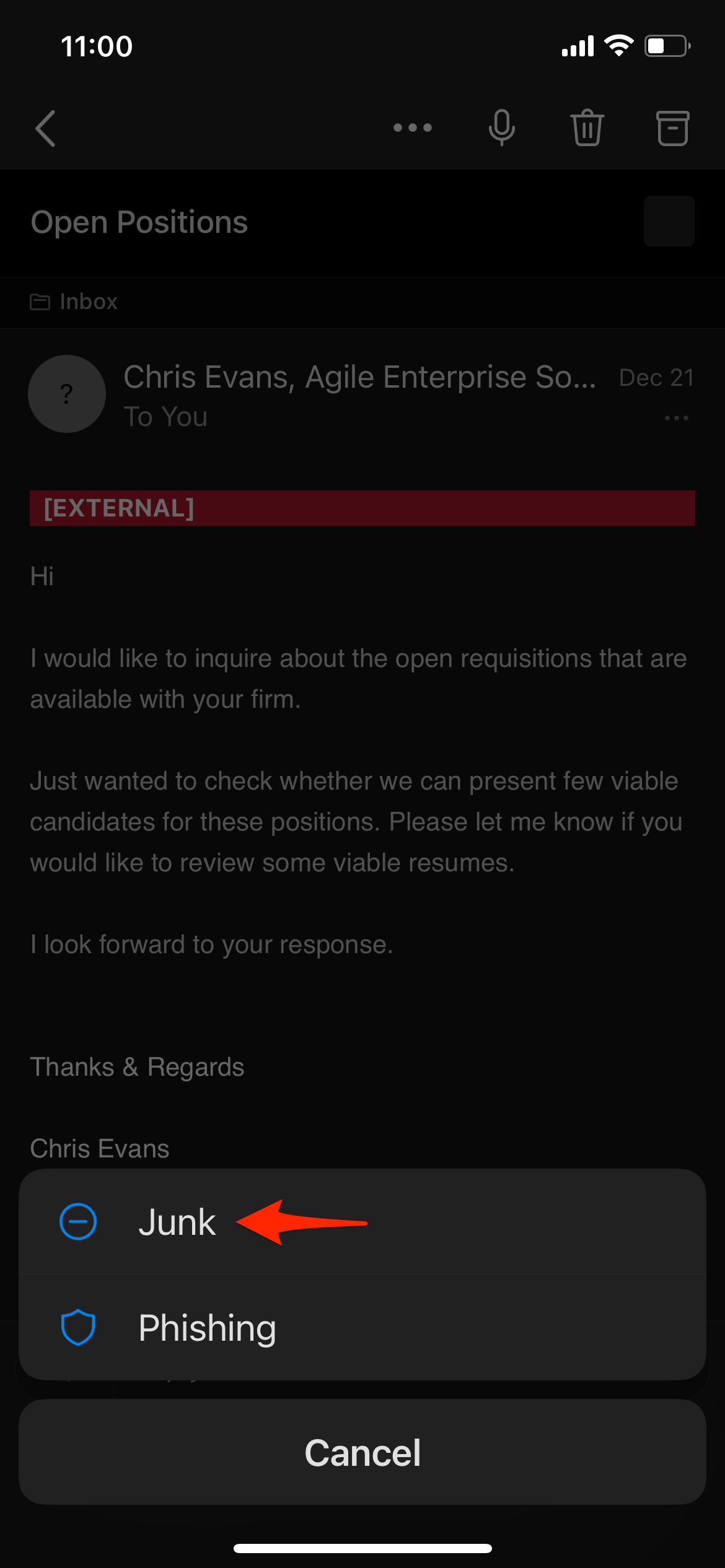
Step #4
In the modal dialog, select 'Report' option
You're done!
Outlook for Mac
To report phishing email using Outlook for Mac, follow the three (3) steps below:
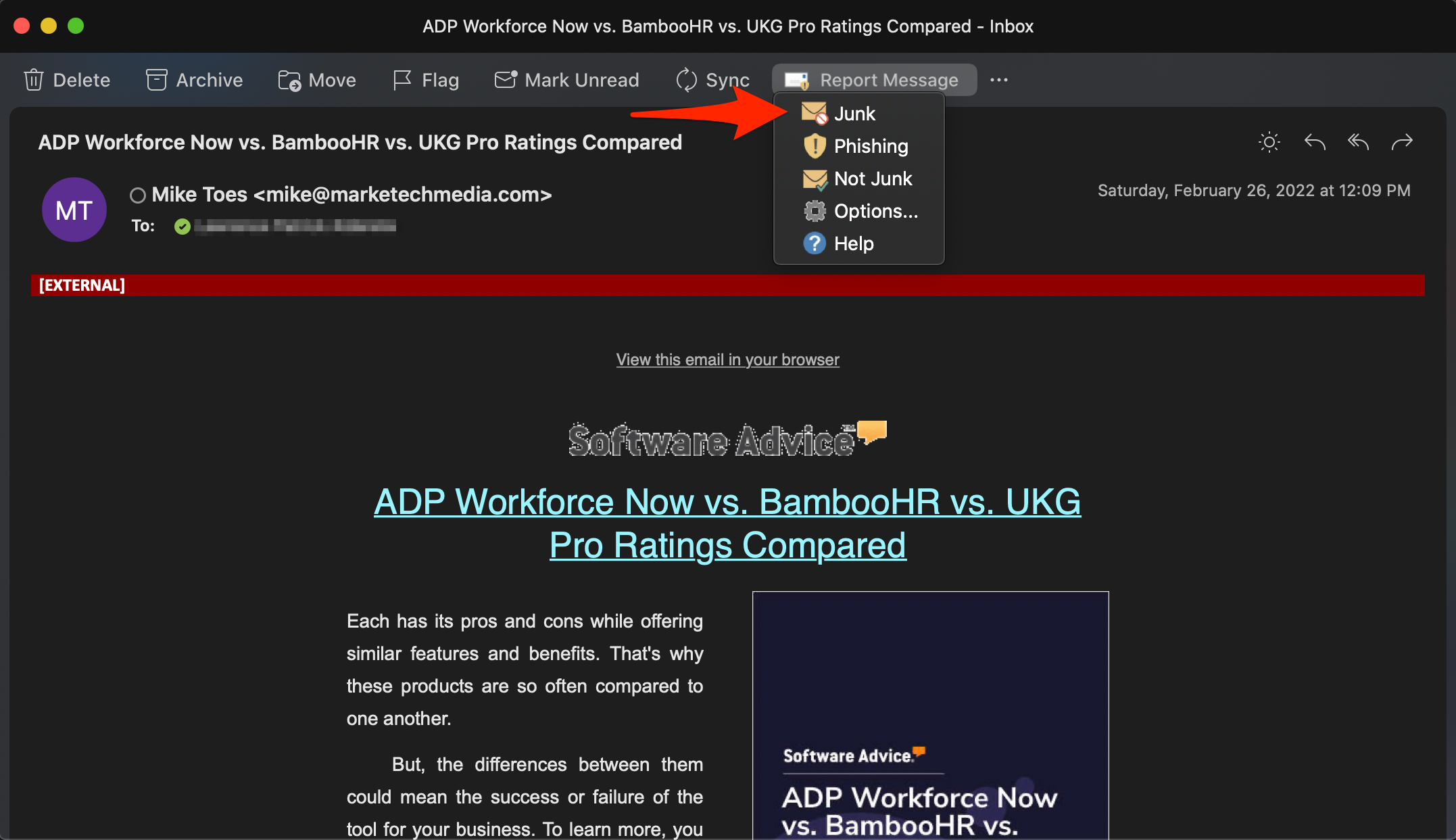
Steps #1 and #2
Select the 'Report Message' icon, then select the 'Phishing' option
Step #3
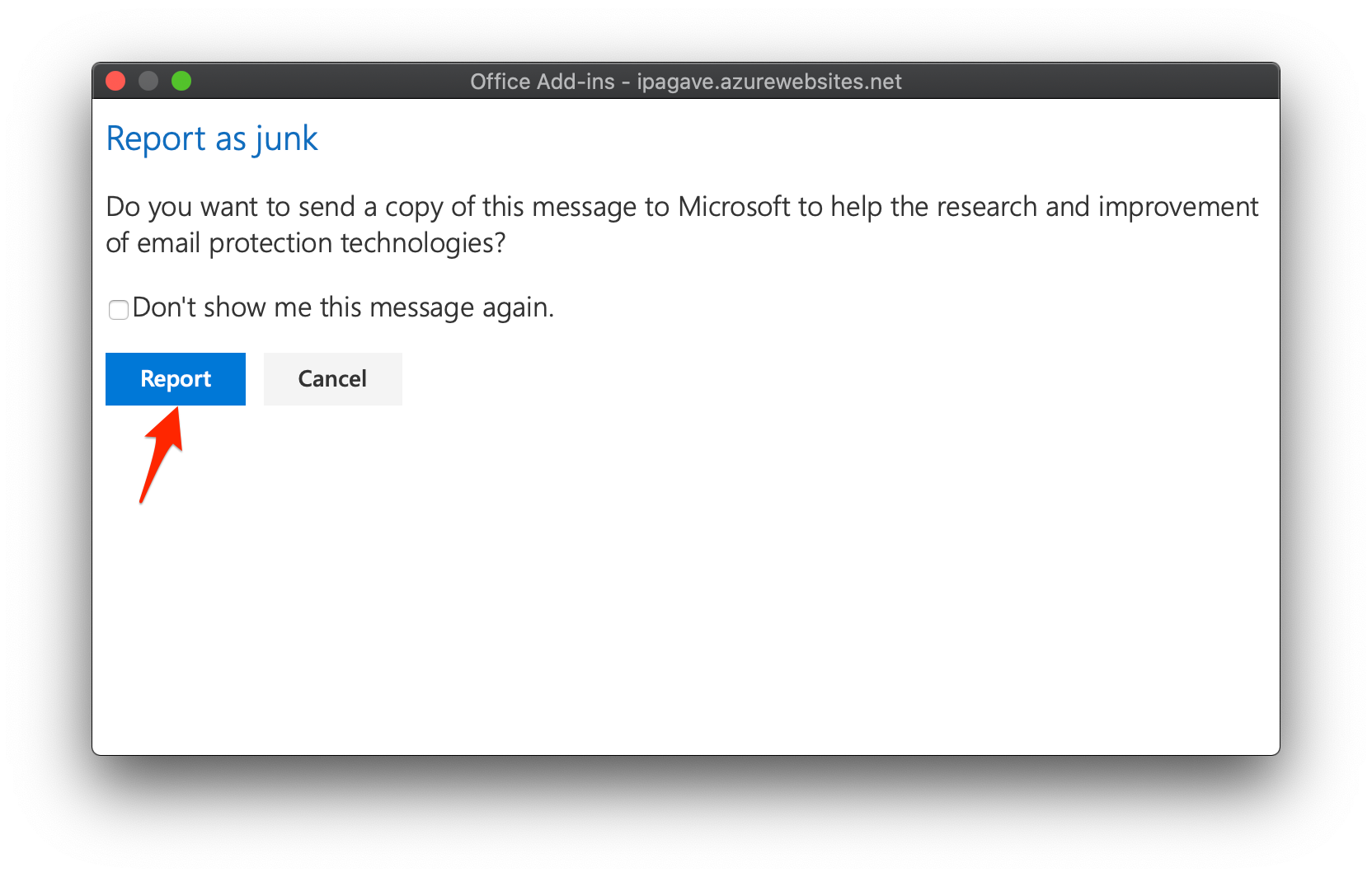
In the 'Report as phishing' modal dialog, select the 'Report' option
You're done!
Outlook for Windows
To report phishing email using Outlook for Windows, follow the three (3) steps below:
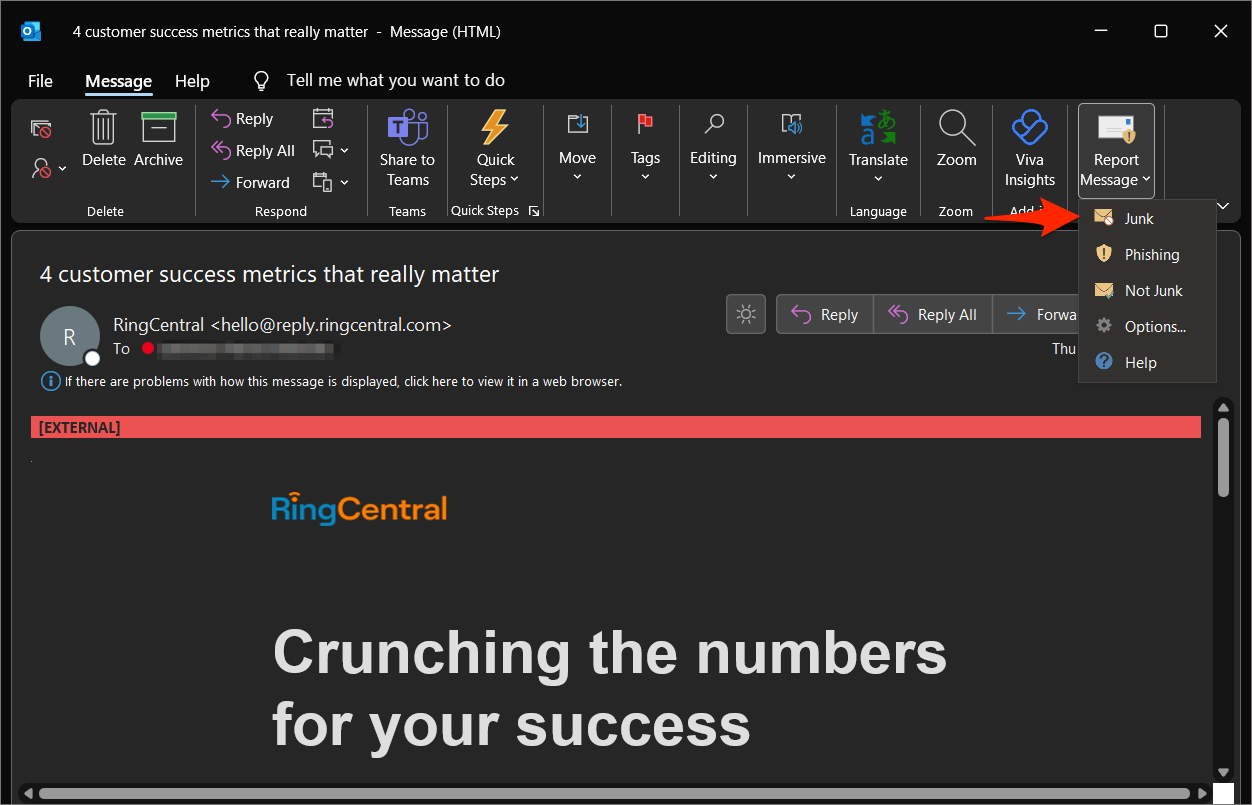
Steps #1 and #2
Select the 'Report Message' icon, then select the 'Phishing' option
Step #3
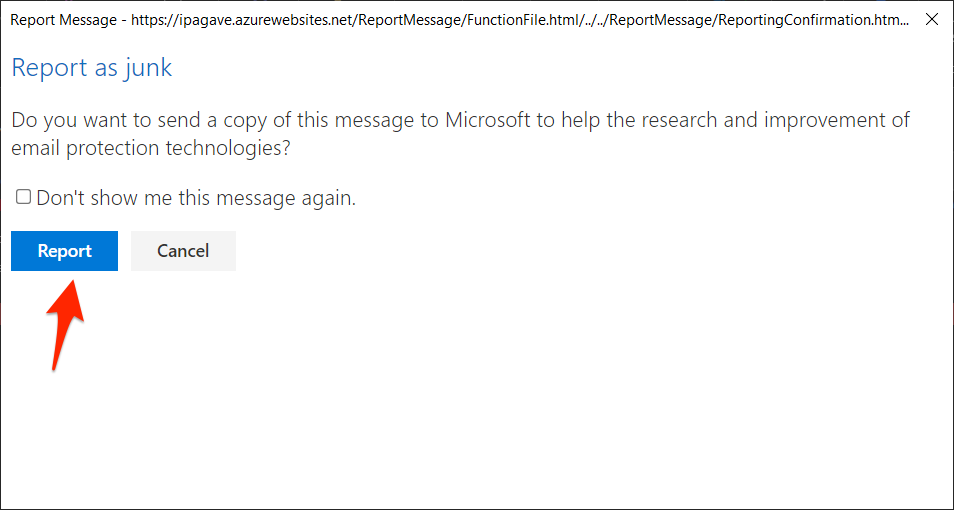
In the 'Report as phishing' modal dialog, select the 'Report' option
You're done!
Outlook Web Access
To report phishing email using Outlook Web Access (OWA), follow the two (2) steps below:
Method #1
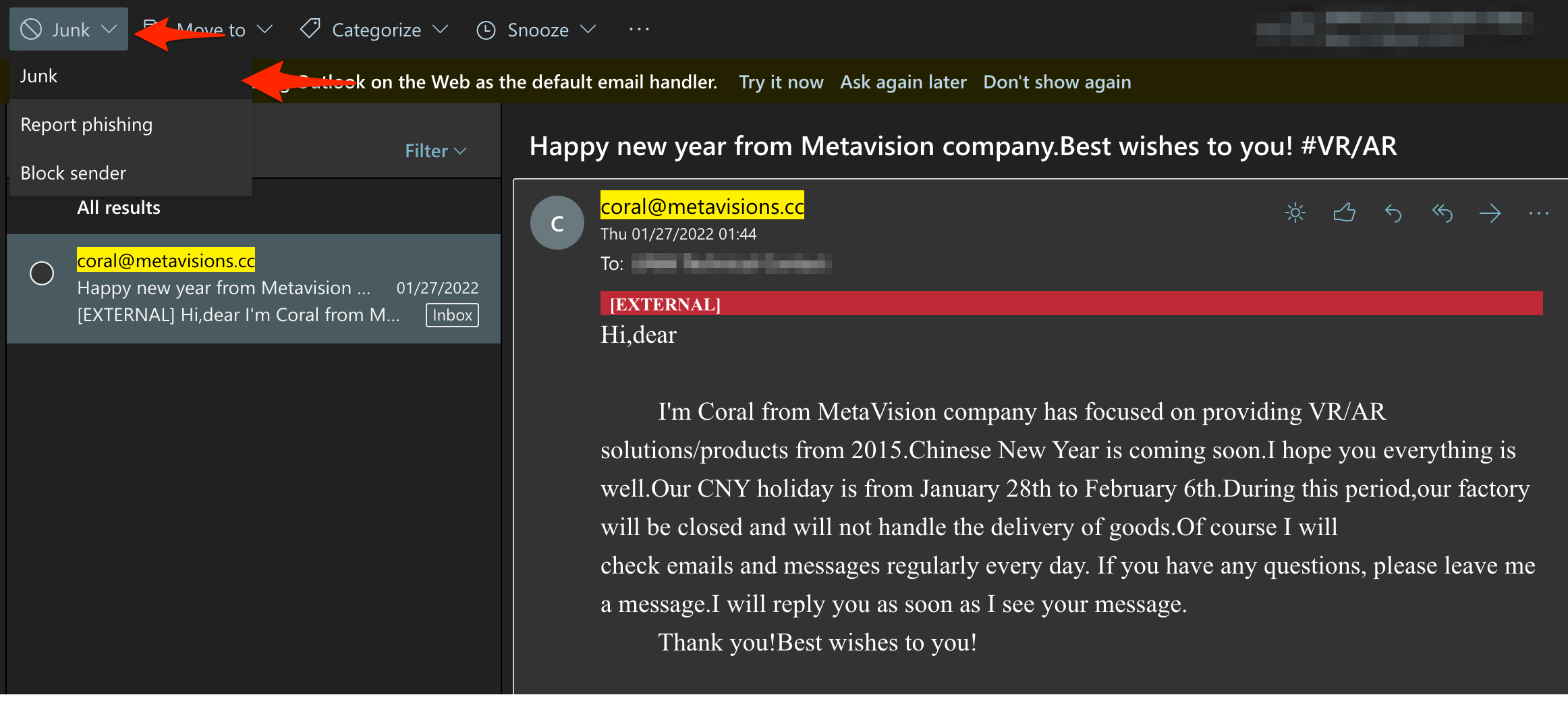
Steps #1 and #2
Select the 'Junk' icon, then select the 'Phishing' option
You're done!
Account, Device, or System Incidents
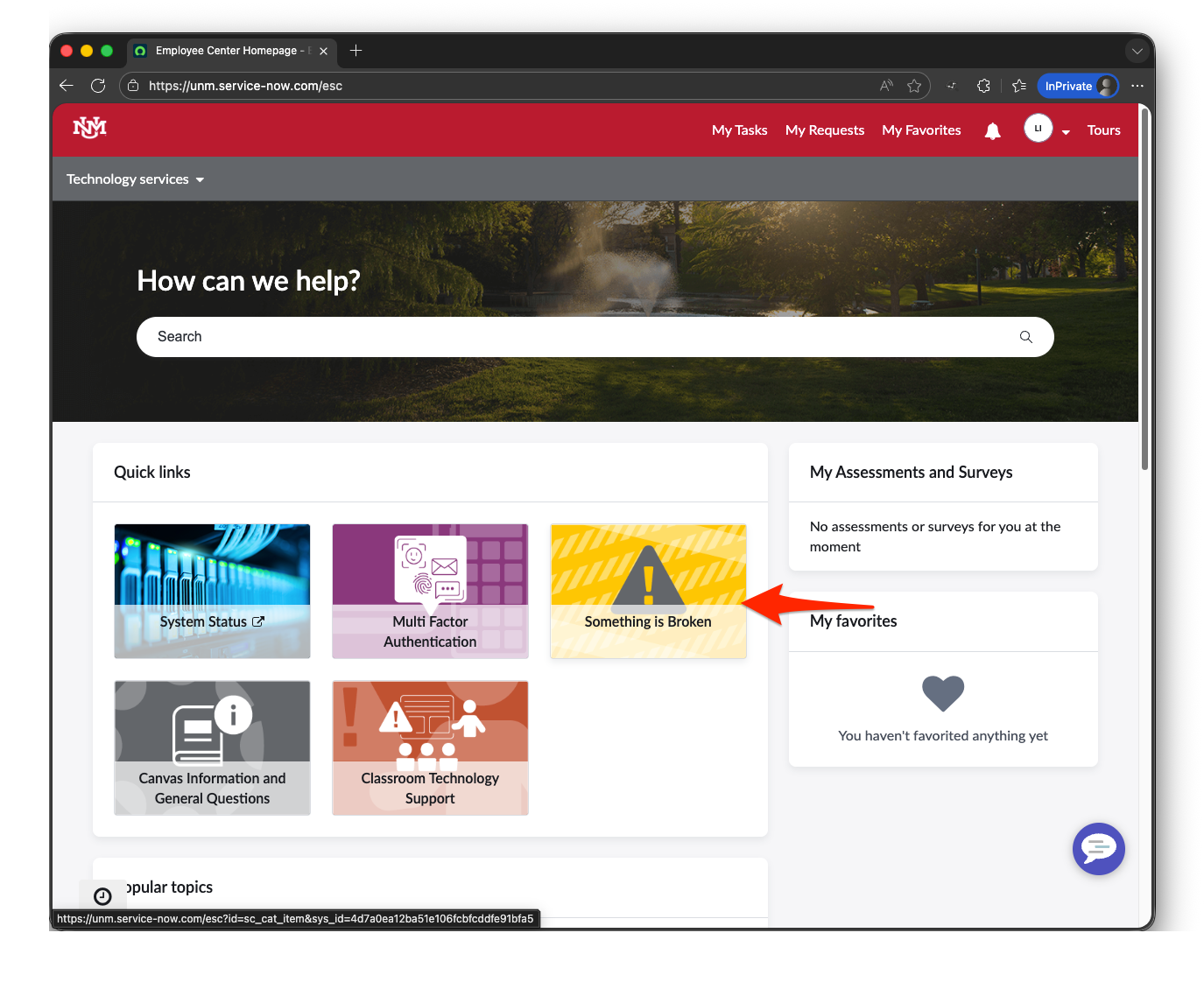
Step 1
Navigate to ServiceNow Employee Center. Once there, you will want to click on the yellow Quick links icon, "Something is broken"
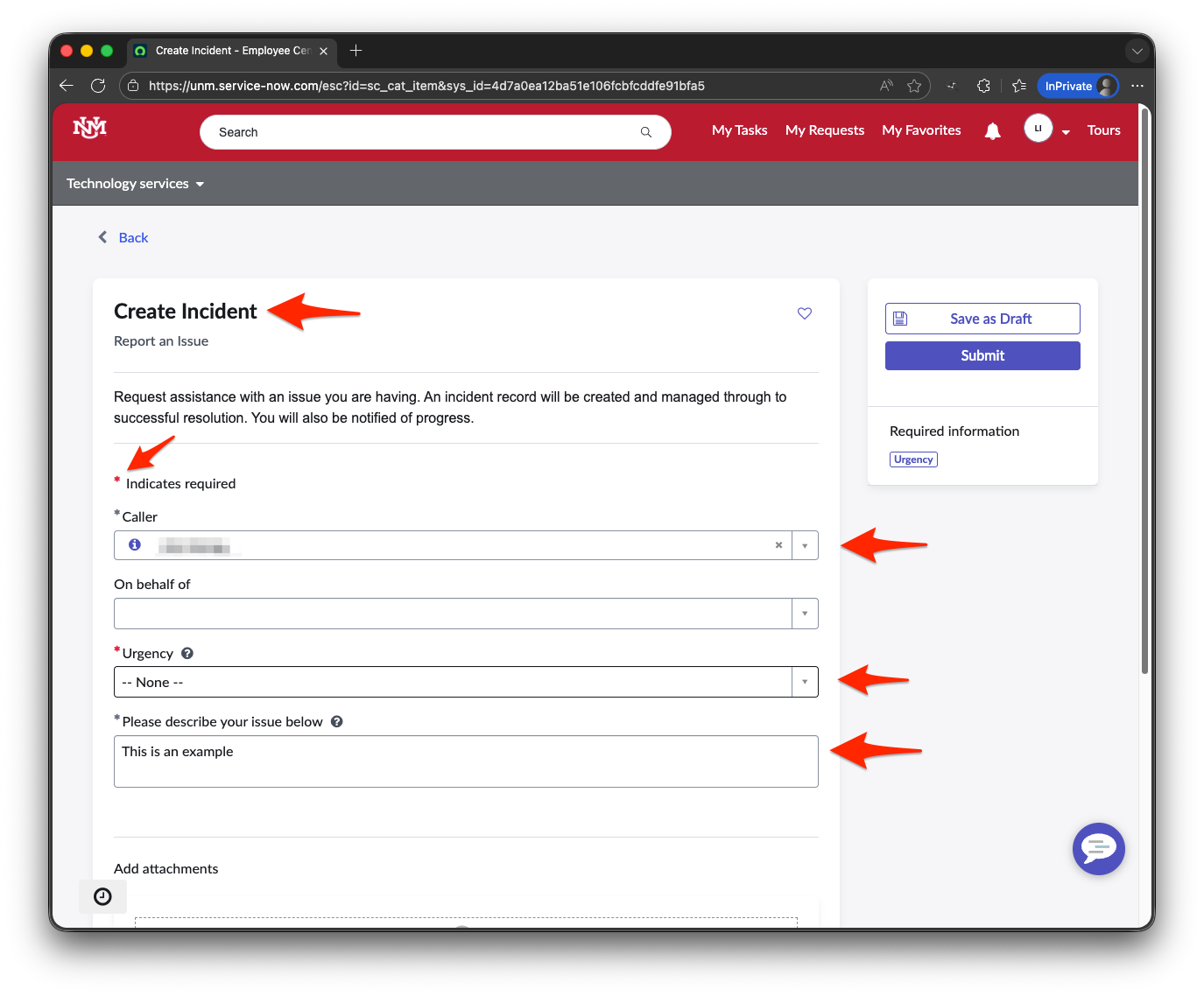
Step 2
Complete the required information (designated with a red asterisk (*))
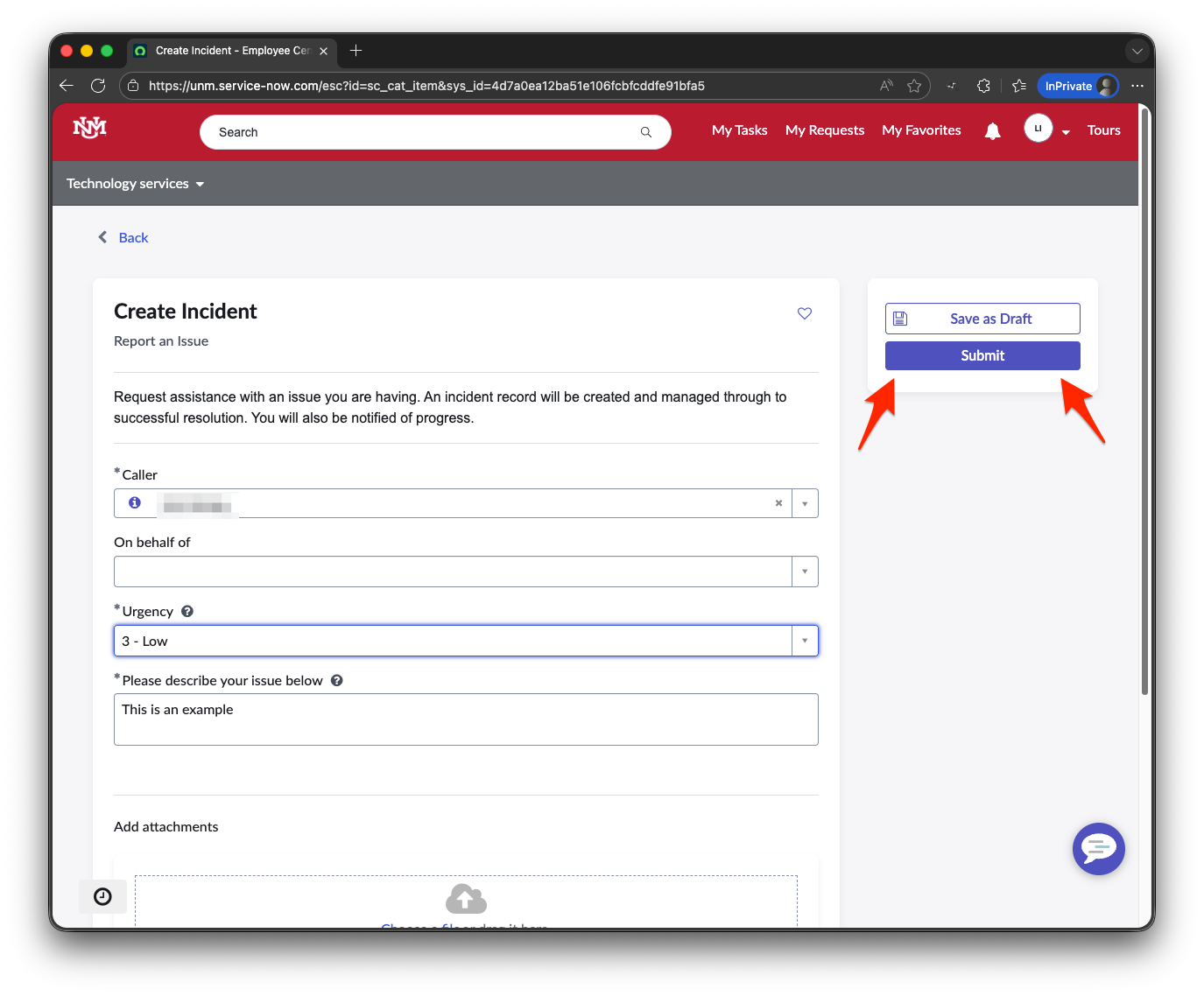
Step 3
After you have verified information in the required fields to be correct, find and select the purple "Submit" button.
Submit a Request
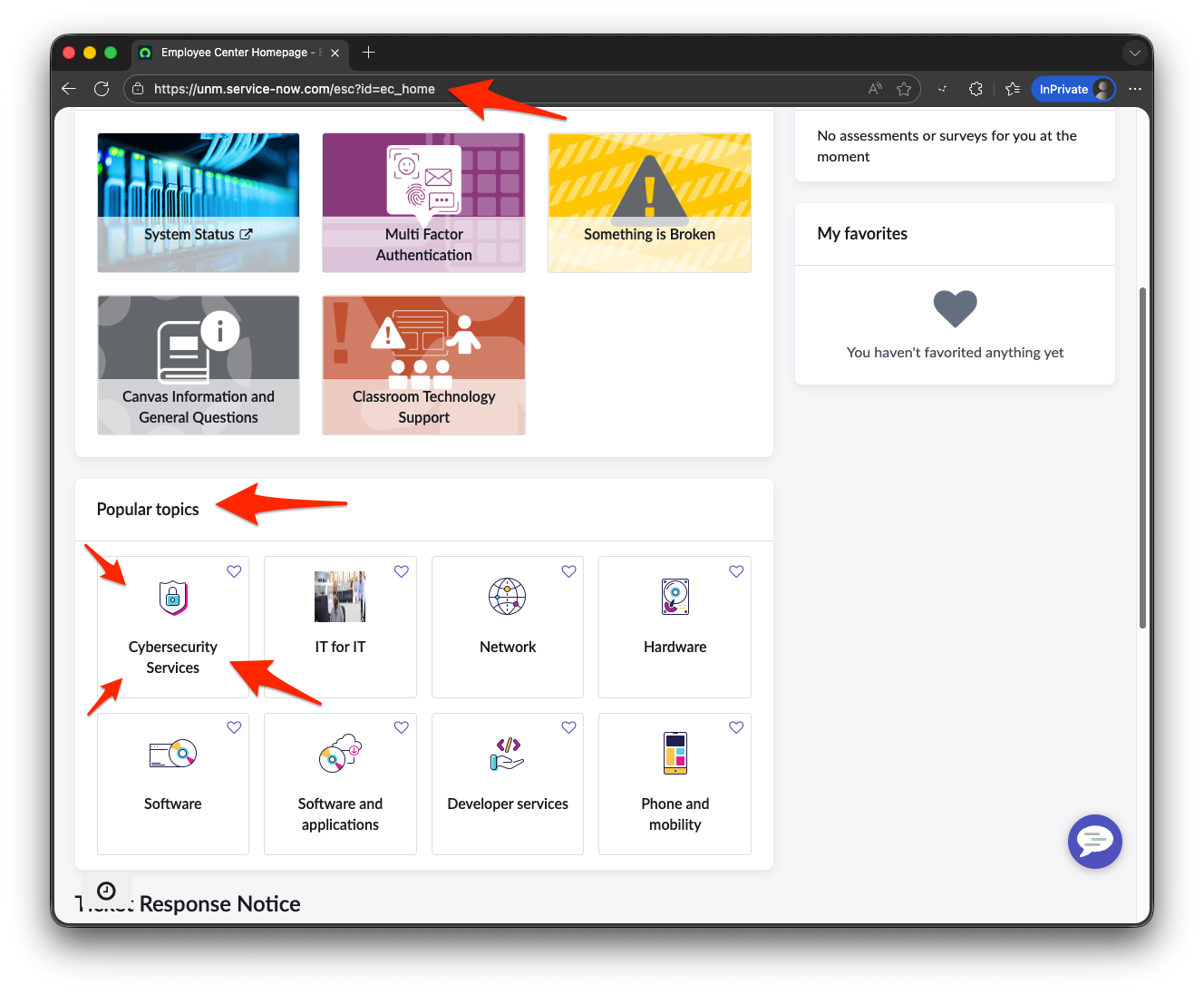
Step 1
Navigate to the ServiceNow Employee Center. Here you will want to navigate to the "Popular topics" and select "Cybersecurity Services".
Step 2
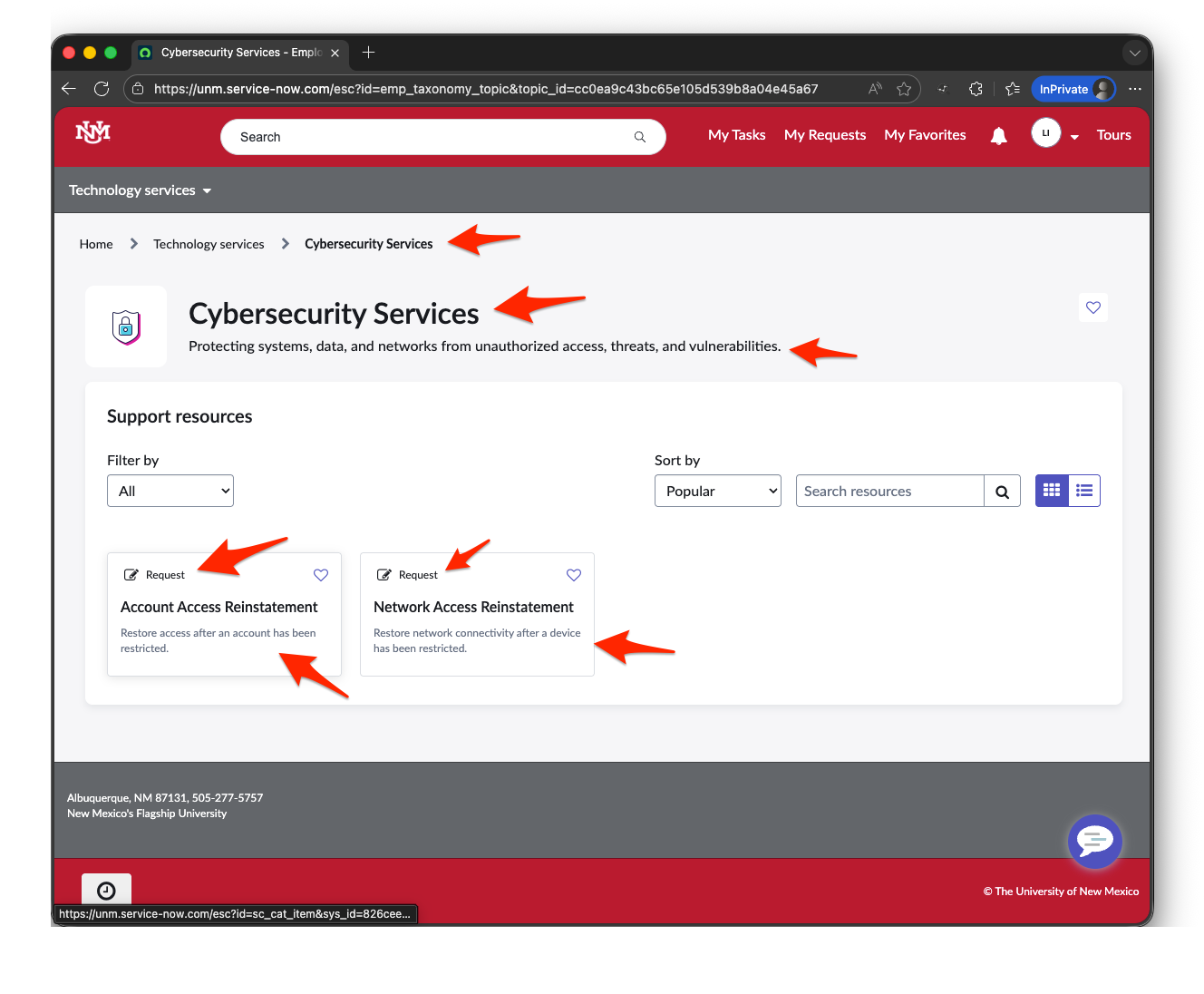
In "Cybersecurity Services" there will be catalog items with descriptions. After reviewing the options and their corresponding descriptions, select the correct catalog item.
Step 3
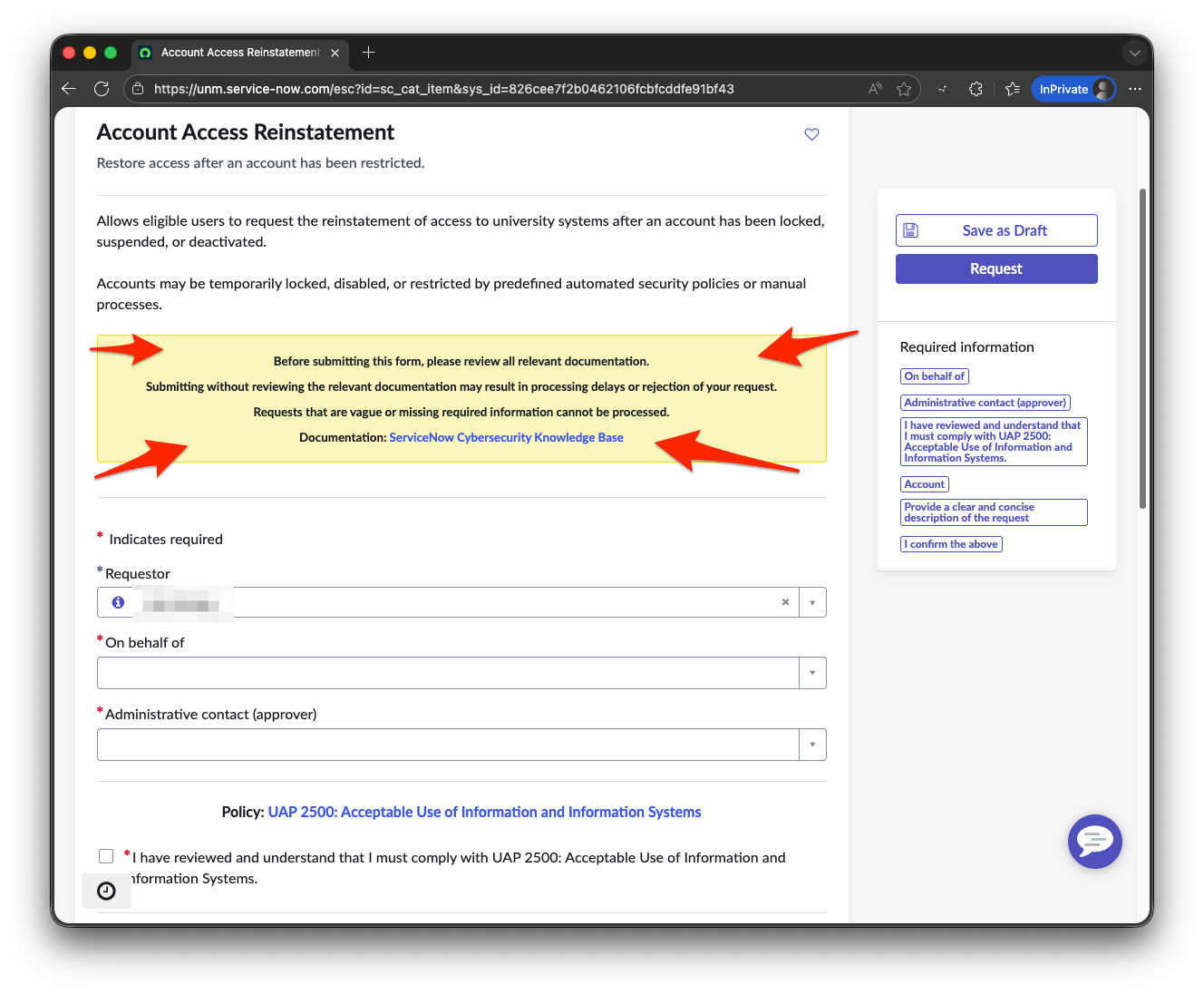
Review the relevant documentation found in the Yellow text box.
Step 4
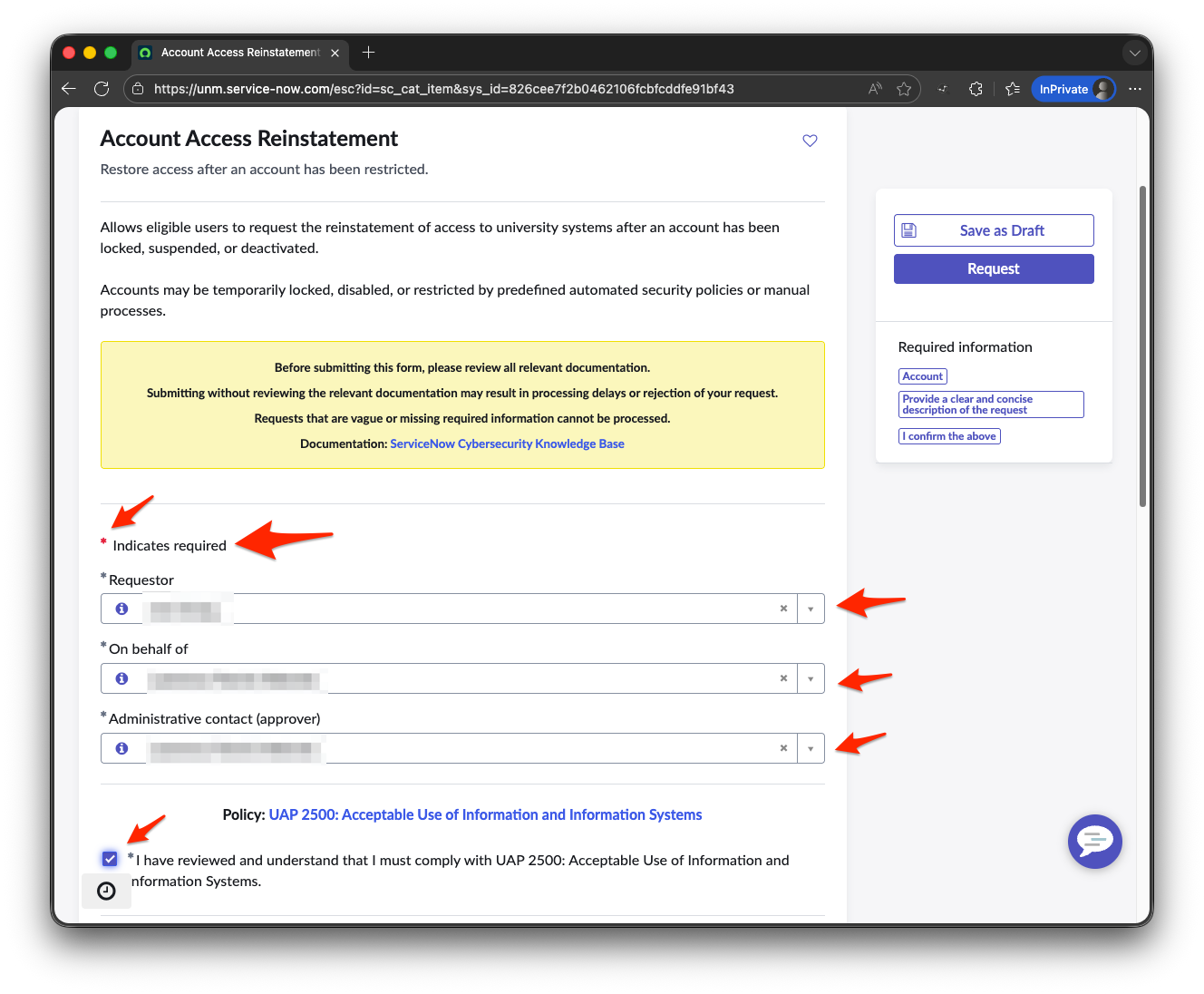
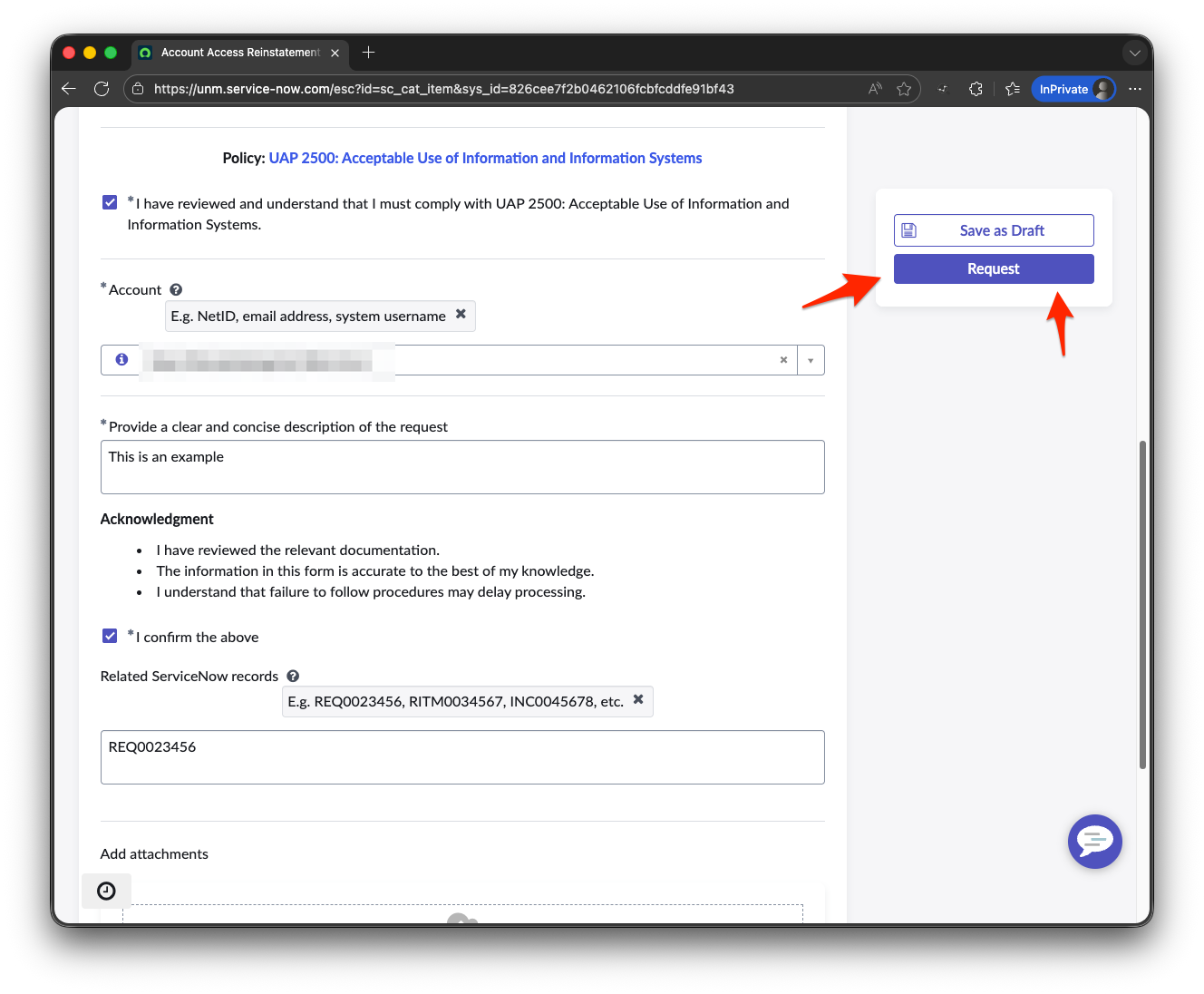
Complete the required information (designated with a red asterisk (*))
Step 5
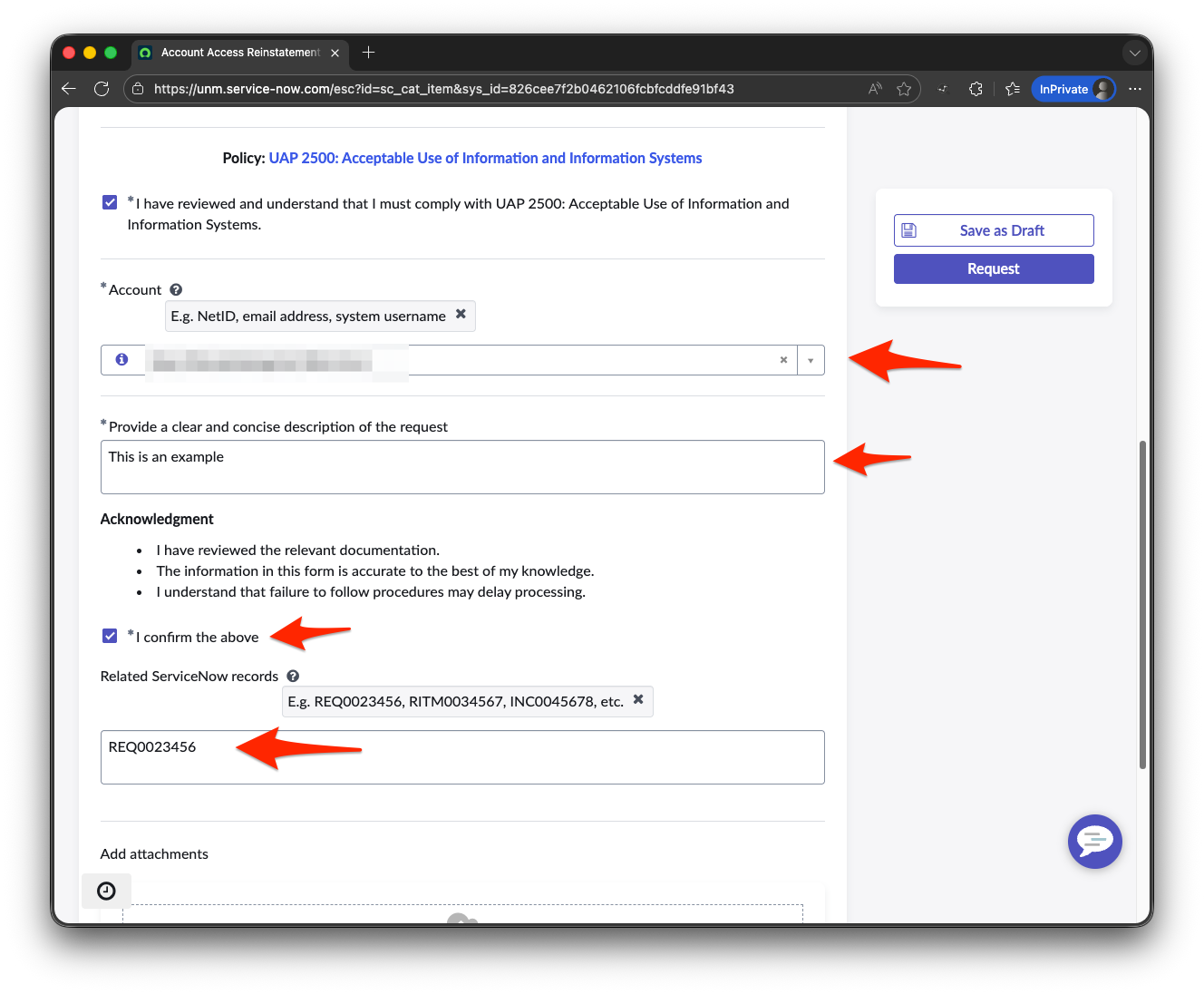
After you have verified information in the required fields to be correct, find and select the purple “Submit” button.
If you have questions or would like to provide feedback regarding this document, please use ServiceNow to submit a request to ensure your question or feedback is received and tracked.